We've updated our rules engine to make it safer to develop new rules without impacting your live transactions.

What's New? ✨

Users can now define separate rule expressions for liveand test transactions.

  • Synced By default, rules will apply to both streams

  • Users can split a rule and write different expressions for the different streams

  • Bring them back in sync by duplicating one expression to the other stream

  • Create Test Only rules to try out new rules without impacting live transactions

See more in this guide

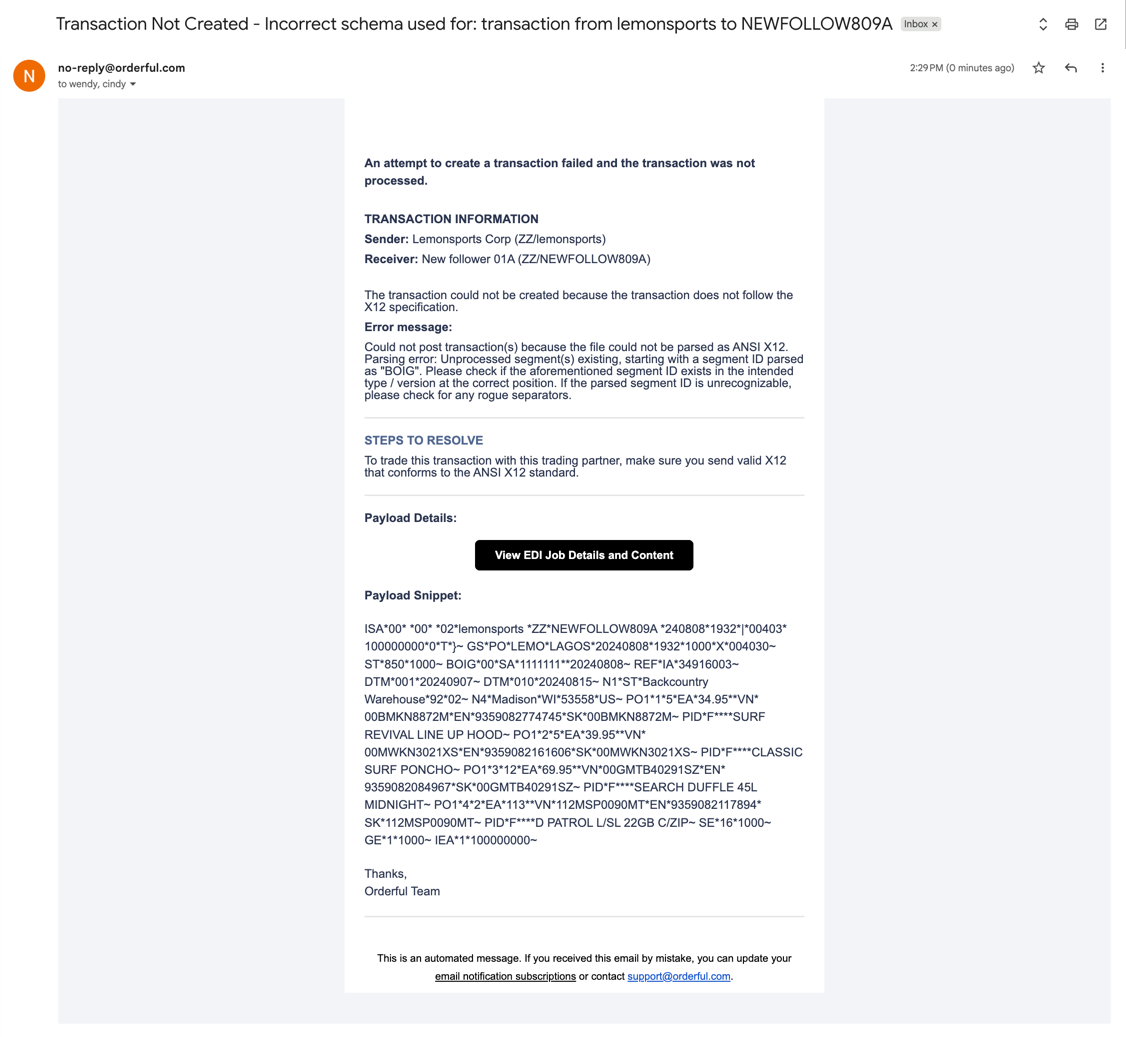
We've updated the unprocessed transaction emails you receive to make troubleshooting faster and easier.

What's New? ✨

When you receive an email about a transaction that couldn't get created, we added a direct link "View EDI Job Details and Content" to the corresponding EDI Job in Orderful.

This direct link allows you to immediately:

  • View Error Details: See the specific reason the transaction failed.
  • Access full original payload: You can view and download the complete, original file that was sent.

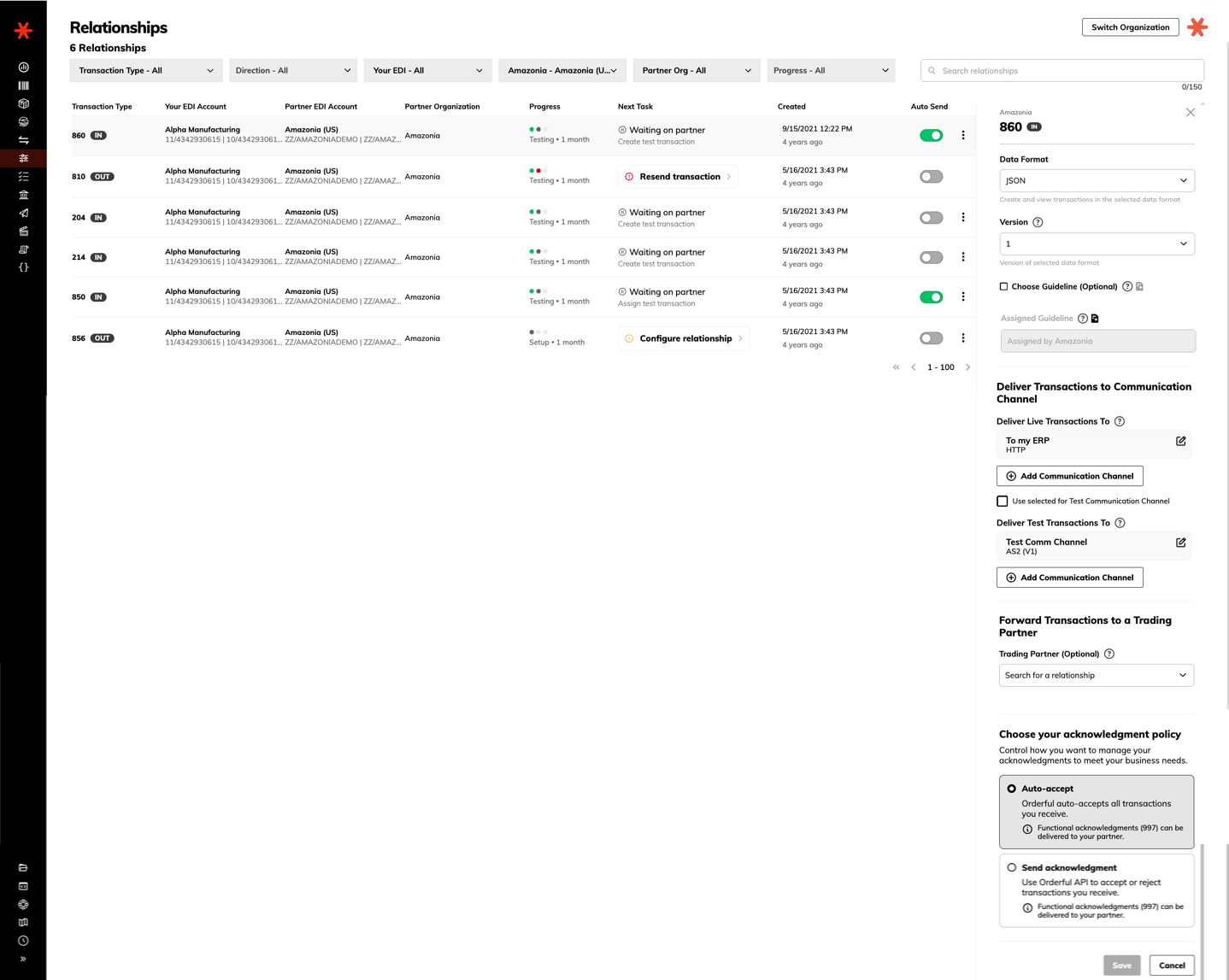
We've updated the inbound relationship settings to provide clearer instructions on the acknowledgement behavior.
Note: The acknowledgment behavior is unchanged. This update is purely for clarity and ease of configuration.

What's Changing?

The previous single checkbox "I will send functional acknowledgements in response to inbound transactions" has been replaced by a dedicated section titled "Choose your acknowledgment policy" with two explicit radio options:

  • Auto-accept: Transactions you receive are automatically accepted.
  • Send acknowledgment: You control the acceptance or rejection of transactions you receive.
    Control is managed either by sending a functional acknowledgment (997/CONTRL), if you trade X12 or EDIFACT or by using the Orderful API, if you trade JSON.

Benefit

This change moves configuration from an ambiguous checkbox to clear policy options, ensuring you always know the exact operational flow for acknowledging transactions and sending acknowledgments back to your partners. Additionally, the new UI provides confirmation on whether your partner can receive the required 997 or CONTRL acknowledgment.

We’ve made it easier than ever to update your partner guidelines You can now create and manage guideline versions directly in the Orderful UI, keeping your rules up to date while preserving full version history.

What’s New

Create New Version — From any existing guideline, click Actions → Create New Version to start a new editable draft.

Version Notes— Document your changes clearly for your team (e.g., “Added new PO104 code values”).

Version History — Quickly see which versions are Draft, Published, or Archived.

Auto-Archiving — Publishing a new version automatically archives the previous one, so your history stays clean.

Why It Matters

Versioning helps your team:

  1. Keep audit history of every change to partner rules.
  2. Safely test updates before deploying.
  3. Avoid confusion around which guideline version is live.
  4. Simplify collaboration between compliance and EDI ops teams.

How It Works

Open a guideline and select Create New Version.

Rename it (e.g., Partner ABC 850 v2.0) and add your Version Notes.

Update guideline requirements

Publish your new version when ready.

(Optional) Set it as the default for that partner or transaction type.

Previous versions remain archived for reference and cannot be edited, ensuring clean version control and data integrity.

Learn More

See the full step-by-step help guide

Released: Oct 16, 2025 Type: New feature

TL;DR

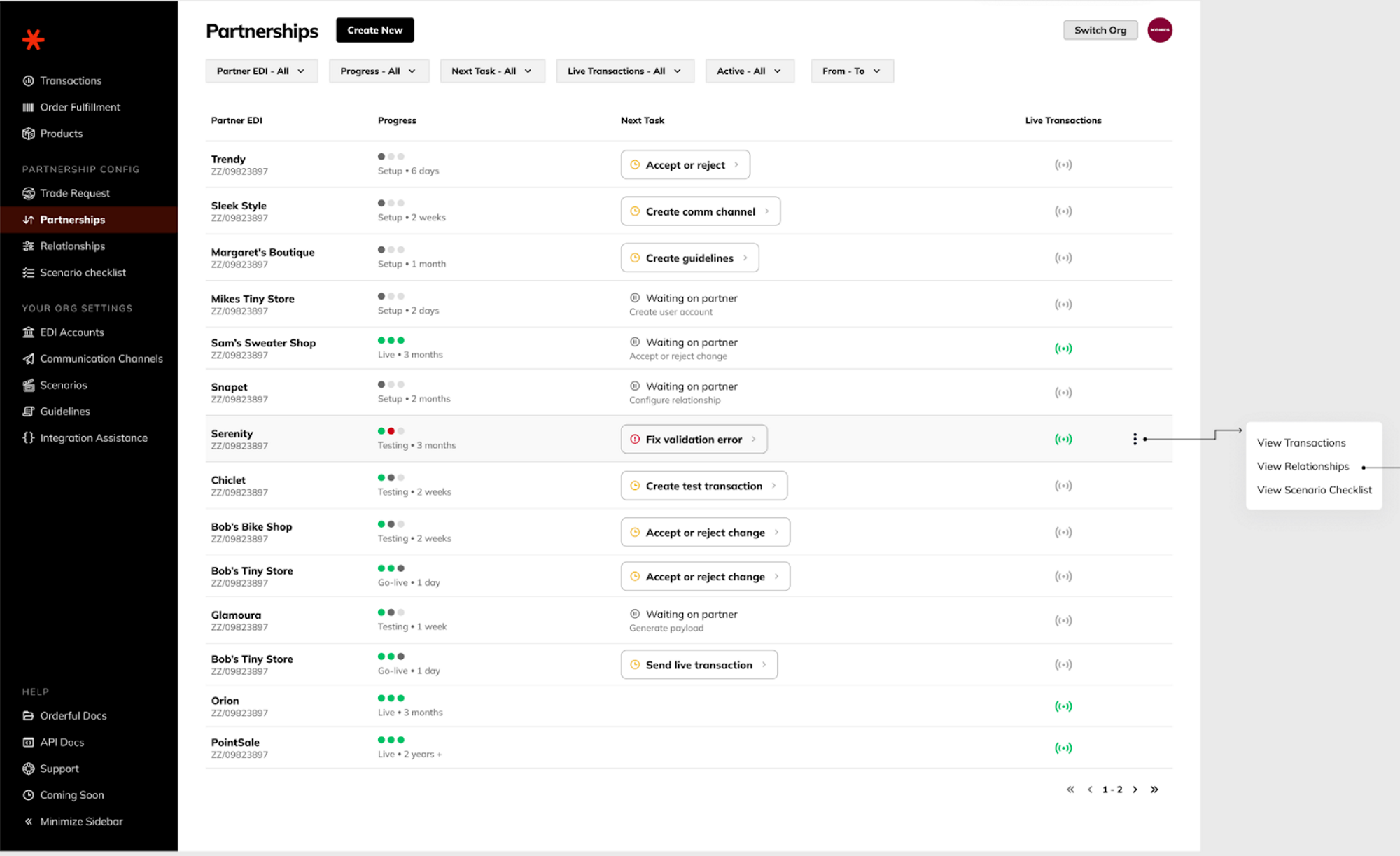
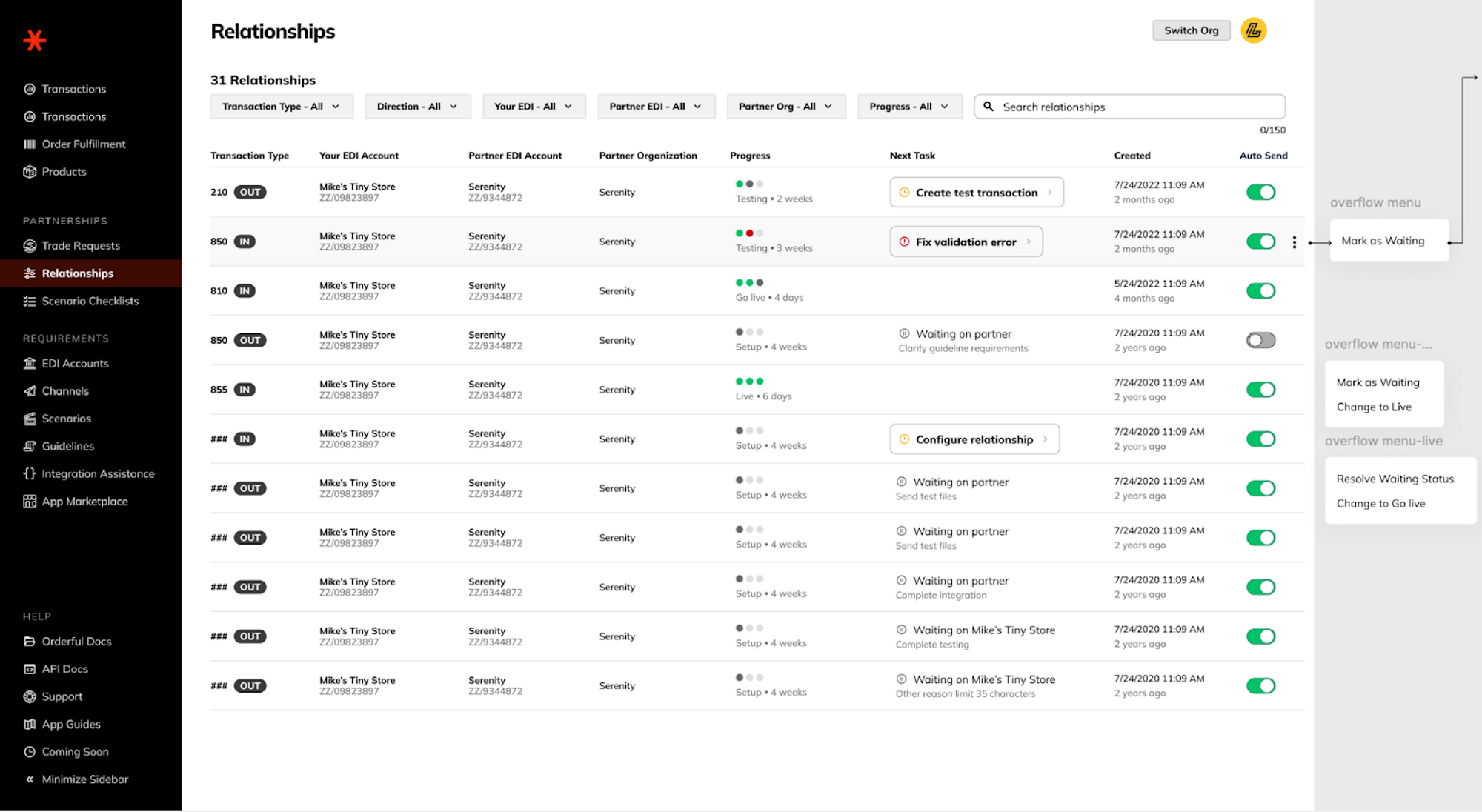
See all partnerships in a single view and always know “what’s my next task?”

  • Clarity: progress simplified to Setup → Testing → Go Live → Live
  • Granularity: tasks appear at Partnership and Relationship (transaction type) levels
  • Transparency: standardized Waiting reasons show who and what is pausing progress
  • Performance: list loads target under 1 second

What’s new

  • Unified Partnerships list - Partner and task context in one row with a single, system-selected Next Task to cut noise.
  • Progress at a glance - The Progress column shows simplified steps and time-in-step.
  • Relationship drill-down - Click a partnership to see each document type (e.g., 850, 855), its progress, next task, and any Waiting flags.
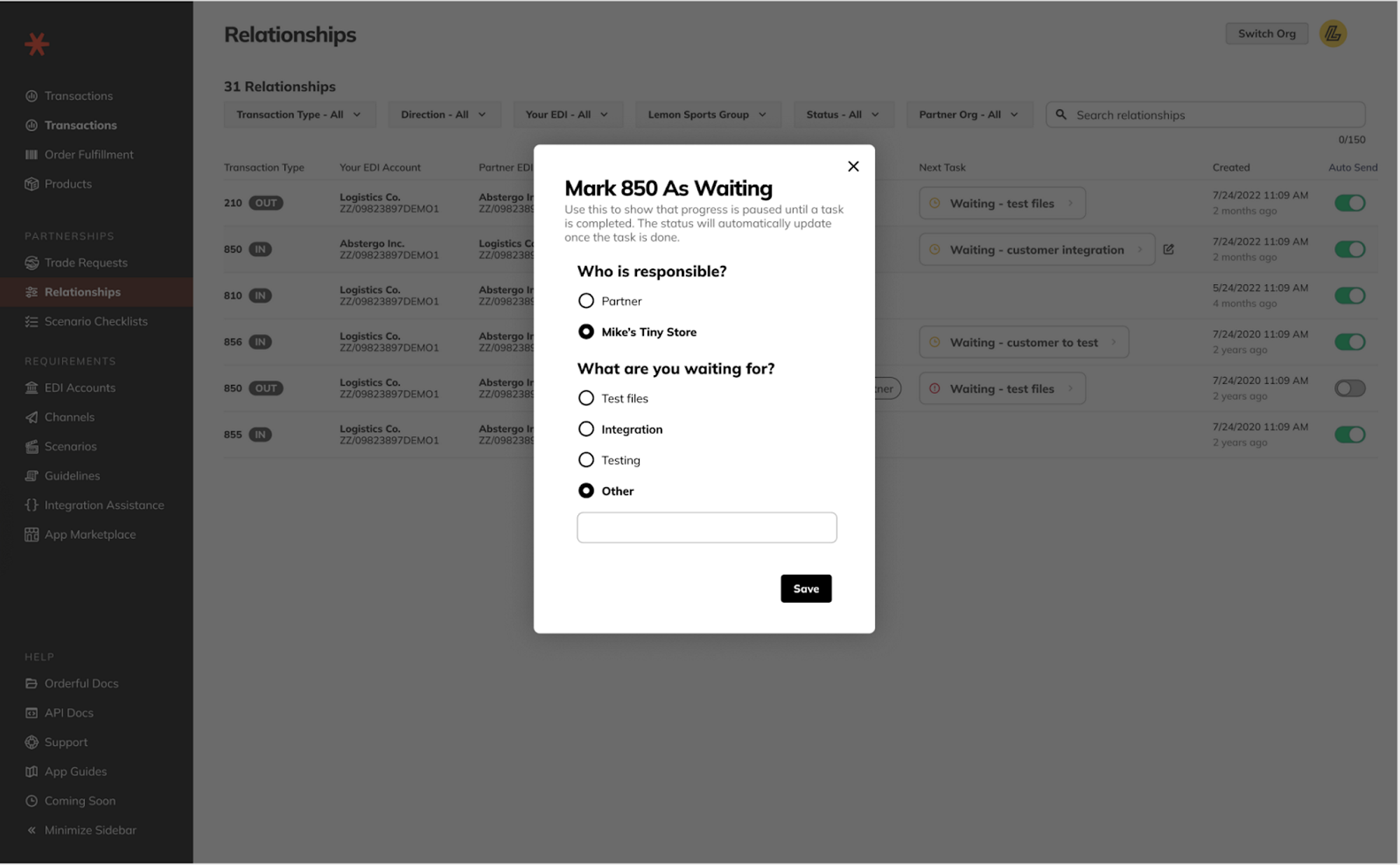
  • Standardized Waiting (manual) - mark tasks as Waiting with reasons like Integration, Test files, Testing, or Other. Waiting is informational and does not block other evaluations.
  • Live beacon details - In Live, hover the “Live Transactions” beacon to see which documents are live vs. still pending.

Why it matters

  • Focus - One clear action to move the partnership forward.
  • Speed - Faster list loads; less time hunting, more time executing.
  • Predictability - Standard phases and reasons make cross-team communication straightforward.

Get started

  1. Open Partnerships and review the Next Task for each row.
  2. Click a row to drill into Relationships for transaction-type details.
  3. Use ⋮ → Mark as Waiting to set who’s waiting and why; it will auto-clear when we detect progress.

Errors vs. Waiting

  • Waiting - You’re waiting on a customer or external dependency (informational only).
  • Error - A resolvable issue detected by evaluation (for example, a validation error). Fix the root cause and the task moves out of Error on the next evaluation.


FAQs

  • Why only one next task? Multiple items can be pending; we surface the most relevant one to keep execution focused.
  • Can I close a task manually? No - completion is event-driven to maintain integrity.
  • A task looks stale - what should I do? Drill into the relationship for context. If it still looks off, ask an onboarding teammate to trigger a re-evaluation.

Read all about partnerships here


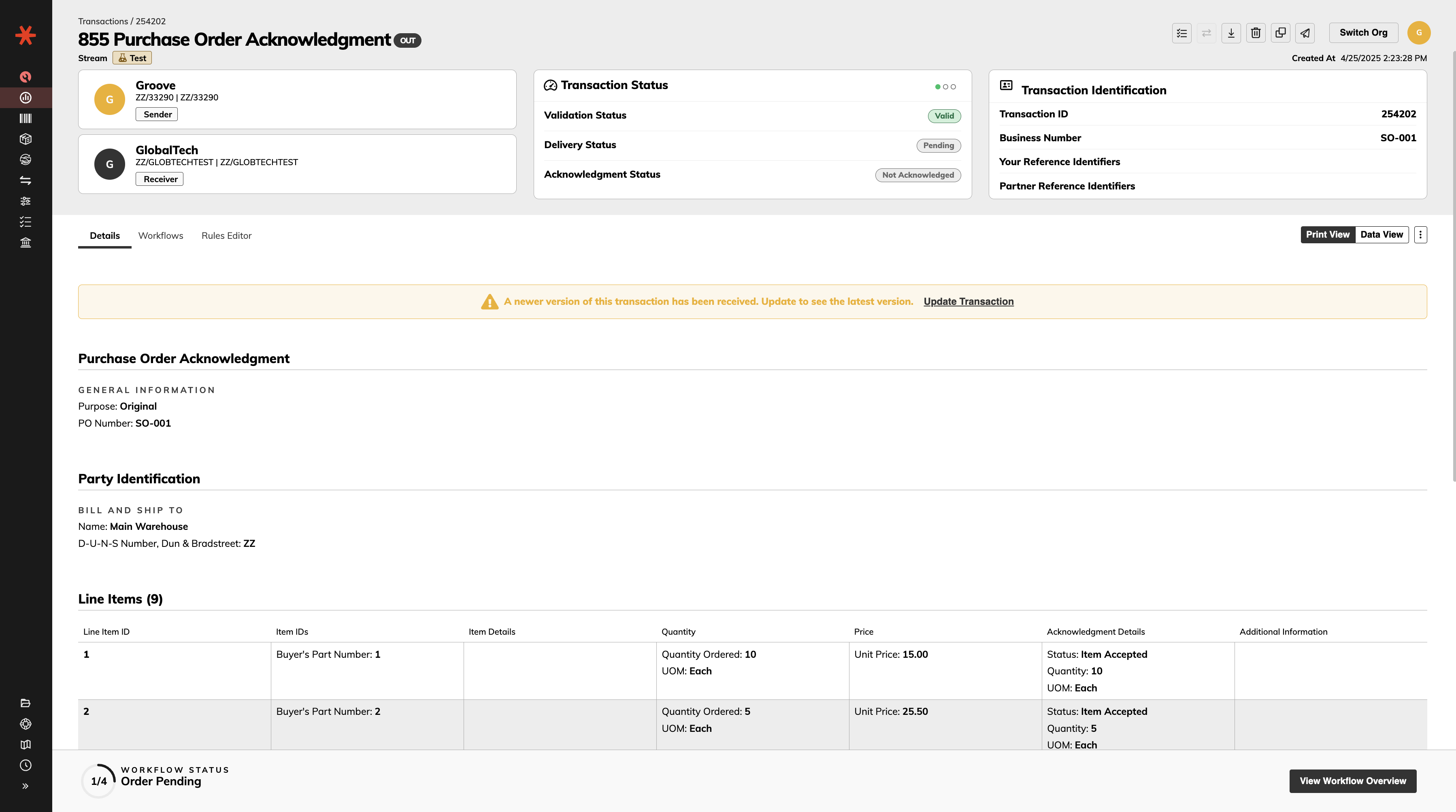
Web EDI Order Fulfillment now includes significant enhancements to how sales orders are generated, tracked, and updated. These updates improve support for complex retail workflows involving multiple stores, PO changes, and changes in what has been acknowledged, shipped or invoiced.

What’s New?

Sales orders now serve as the central source of truth for outbound transactions such as:

  • Purchase Order Acknowledgments (855)
  • Advance Ship Notices (856)
  • Invoices (810)

Instead of relying solely on the latest 850 PO, we consolidate the buyer’s intent across:

  • The original PO (850)
  • Subsequent POs
  • Purchase Order Changes (860) — including item updates, replacements, and cancellations

Each sales order continuously updates to reflect any confirmed changes via PO acknowledgments or new POs, ensuring transactional consistency and accuracy.

Additionally, return transactions are now auto-populated based on tracked quantities in the sales order, closing the loop for end-to-end visibility and management.

How It Works

Each retail order progresses through a series of transactions, each one informing the next. Sales orders now map and track each key phase of the buyer-seller workflow by store. This allows for support of single-store and multi-store (SDQ) scenarios.

Example Workflow:
Buyer sends a PO (850)

Seller responds with a PO Acknowledgment (855)

Seller creates a Ship Notice (856)

Seller issues an Invoice (810)

System populates a Return transaction (RMA or RTV) based on discrepancies or returns

Every transaction updates the sales order’s view of what was ordered, acknowledged, packed, shipped, and invoiced — per store.

How It Affects You

Warnings for Out-of-Sync Transactions

The UI now includes warning banners to prevent you from sending outdated information. If a transaction (like an ASN or Invoice) hasn’t been sent yet and its item details are no longer in sync with the latest Sales Order:

  • You’ll see a banner warning
  • You’ll be prompted to recreate the transaction to ensure accuracy before sending

This helps avoid errors and ensures customers receive exactly what they expect.

To read more about how Sales Order and Workflow mapping work read on.

We're excited to announce that our enhanced packing features for the 856 Advance Ship Notice (ASN) are now available to all users. These features are designed to streamline your shipping processes, offering greater flexibility and efficiency in packing shipments.

Key Features:

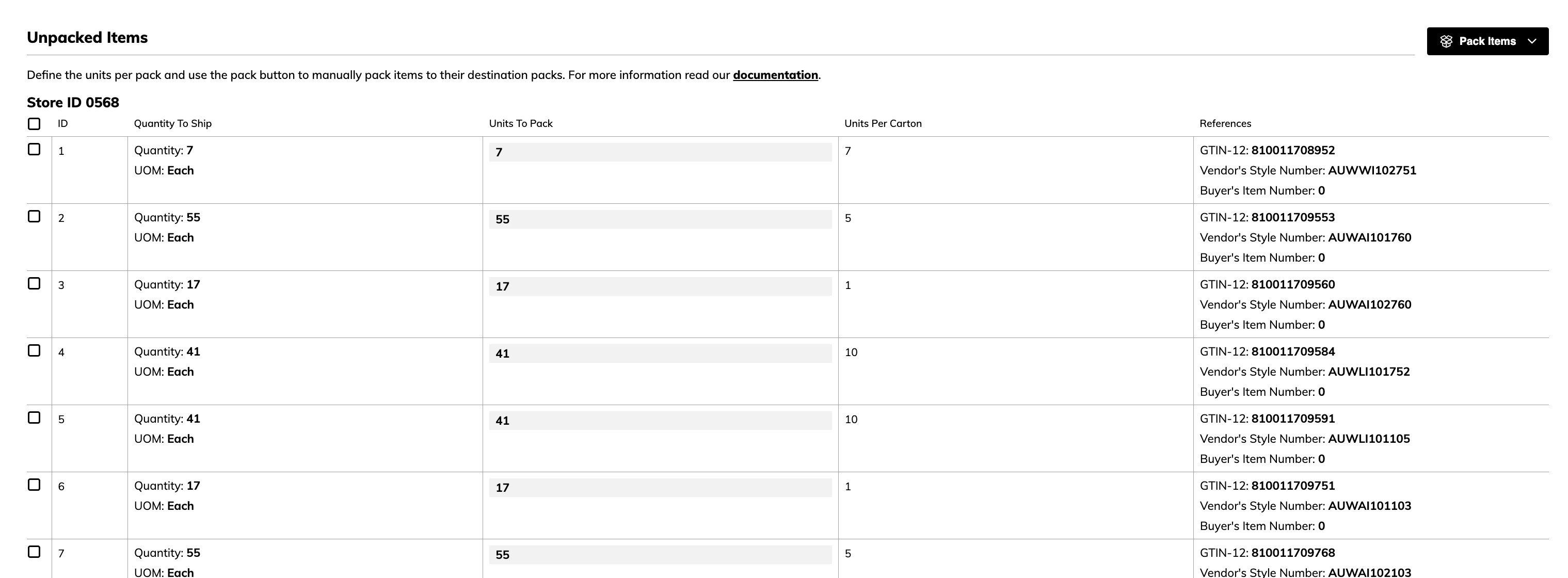
  • Auto-Pack for Homogeneous Cartons: Automatically pack single-product cartons by setting the "Units per Carton" value for each product. The system calculates and creates full cartons accordingly, leaving any remaining units for manual packing.
  • Bulk-Pack for Mixed Product Cartons: Select multiple products to pack together into mixed cartons. Define the number of units per product and the number of cartons, and the system will handle the packing process.
  • Unpacked Items Table: Keep track of items that have yet to be packed, ensuring accuracy and completeness in your shipments.

These features are accessible through the Orderful Web EDI interface, providing an intuitive and user-friendly experience. Please refer to our Packing a Shipment (856) guide for detailed instructions on using these packing methods.

Leveraging these tools can enhance your shipping operations, reduce manual errors, and ensure compliance with trading partner requirements.

To learn more about this feature and how to use it, read more.

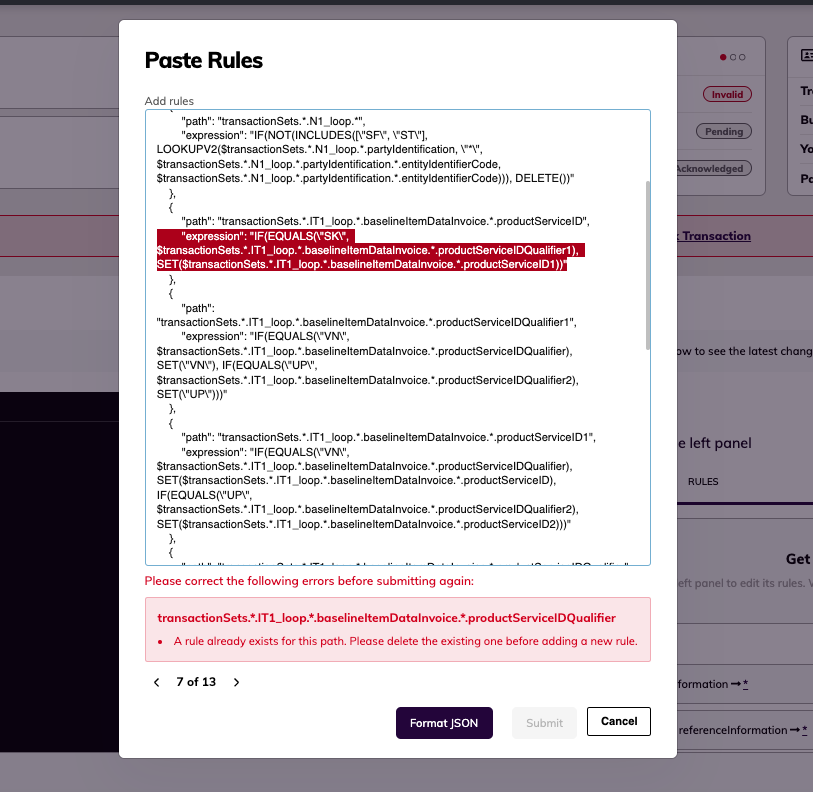
Copy-Paste All Rules + Rule Expression Editor

  • Save time with quick actions for Copy or Paste all Rules within a Relationship instantly
  • Easily transfer rules between relationships to quickly resolve Guideline validation errors
  • Navigate and fix multiple rule expressions efficiently with our improved editor that highlights and cycles through errors


Default Rules on New Relationships:

  • When creating new Relationships in the testing phase (before receiving your first test transaction), Orderful now automatically adds starter rules to streamline your setup
  • You can easily remove or edit them from the Rules Editor tab within a specific Transaction Details page

Default Rules are added when the following paths are matched:

  • *.partyIdentification.*.entityIdentifierCode
  • *.referenceIdentificationQualifier
  • *.dateTimeReference.*.dateTimeQualifier

What is the 846 Inventory Advice?
The 846 Inventory Advice is a standalone EDI transaction used to communicate real-time inventory levels to buyers, outside of the traditional Order to Cash workflow. It’s typically sent on a scheduled basis (hourly, daily, or weekly) and helps your partners:

  • Know what’s in stock
  • Understand product availability into the future
  • Plan and manage replenishment more effectively

What’s New?
With the 846 Inventory Advice transaction, you are now compliant with buyers who require a period inventory count for your products available for sale.

The feature allows you to auto-populate your product and inventory data based on a product catalog and send the inventory counts in a specified format.

📚 Full guide here: Inventory Advice (846) Guide

Orderful is now allowing you to resend EDI acknowledgments.

You can now:

  • Resend acknowledgments for X12 transactions you've created to your Communication Channel.
  • Resend acknowledgments for X12 transactions you've received to your partner’s Communication Channel — even if your partner is part of the Orderful network but doesn’t have an Orderful account.