Our Print View make EDI transaction data easy to understand with the naked eye and our web form feature allows you to create any transaction easily on our web site. Now, we've combined the power of both to allow for data entry in an attractive, simple package.

Supported transaction types:

  • 204 Motor Carrier Load Tender
  • 812 Credit Debit Adjustment
  • 820 Payment Order/Remittance advice
  • 824 Application Advice
  • 850 Purchase Order
  • 860 Purchase Order Change
  • 864 Text Message

Overview

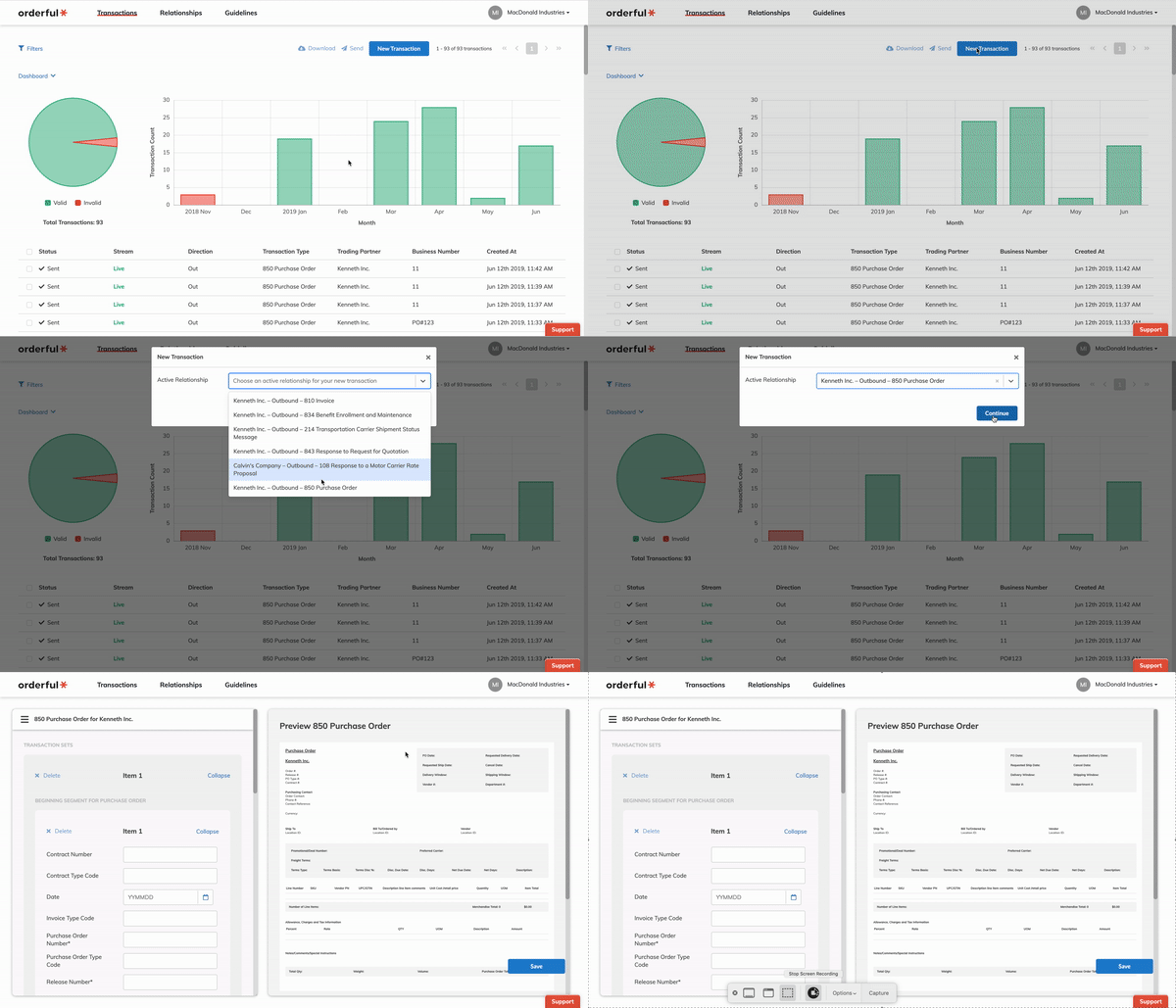
To start, go the transaction list and click 'New Transaction'. Once you have selected one of the supported transaction types above, you will see the new print view entry where you can preview the print view as you fill out the form.

600

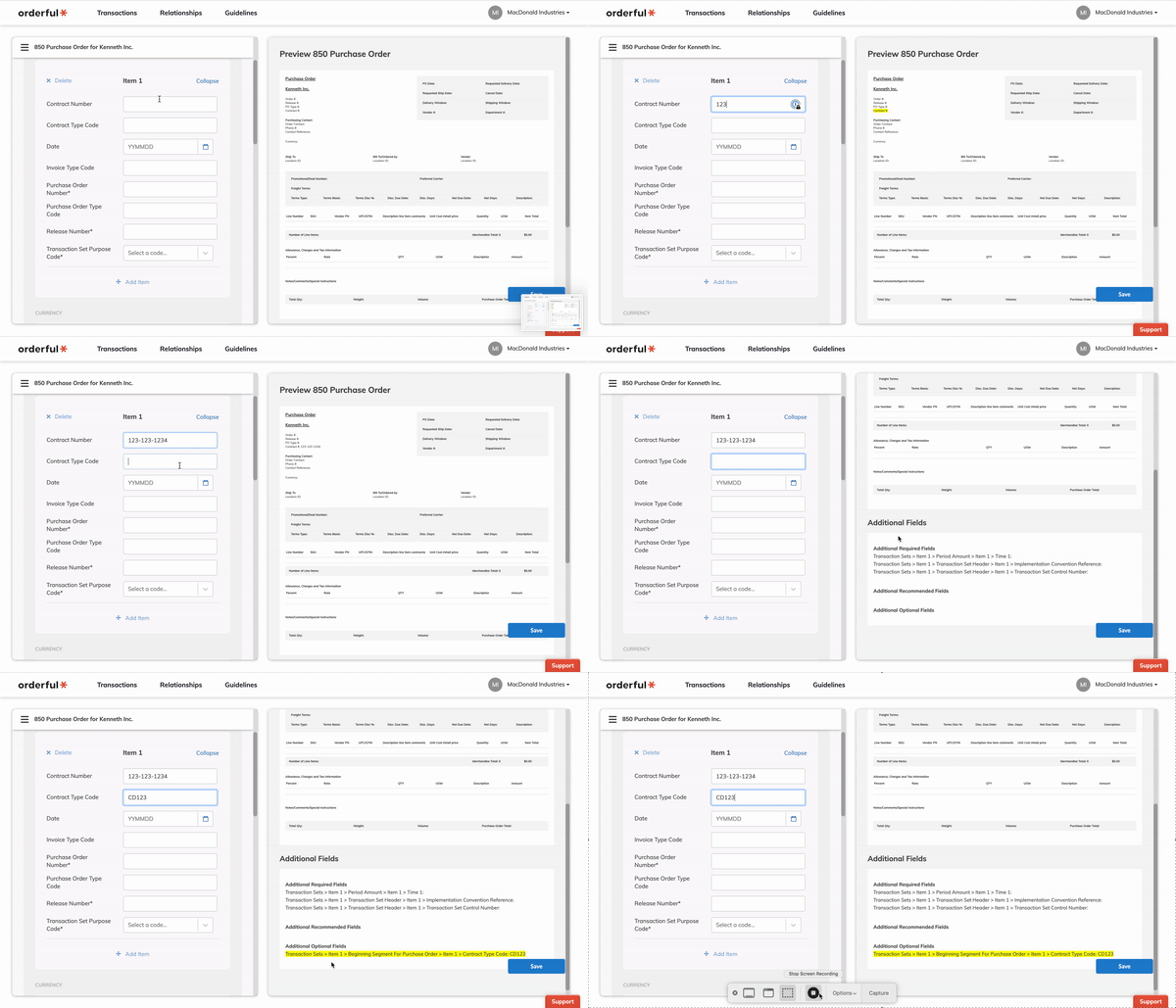
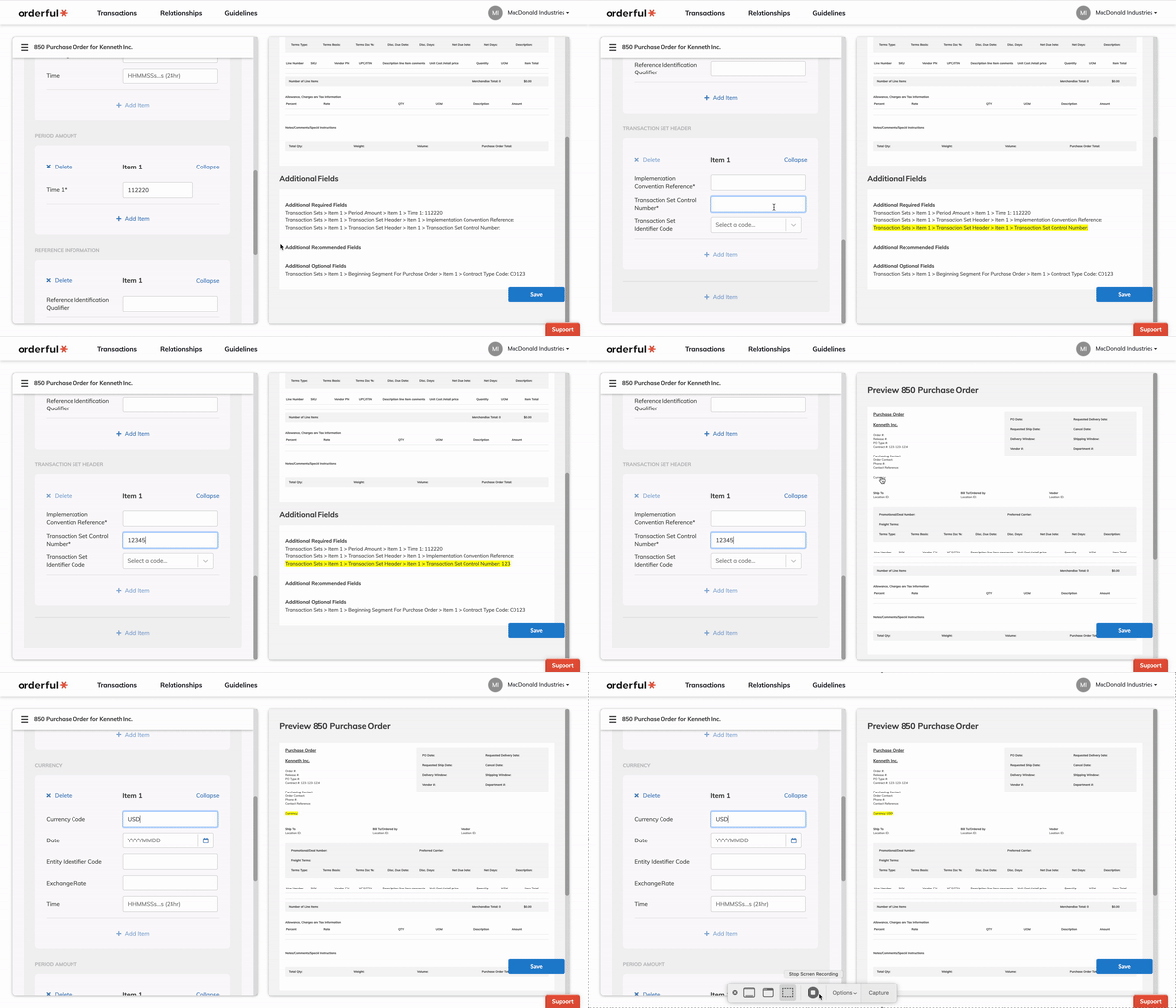
As you focus on an input field and start typing, if the field is used to form the print view, it will be highlighted in yellow on the print view and display the value, otherwise, it will be shown under the 'Additional Fields'.

600

You can also click on the print view field or the additional field, and it will scroll to the corresponding input field on the form.

600

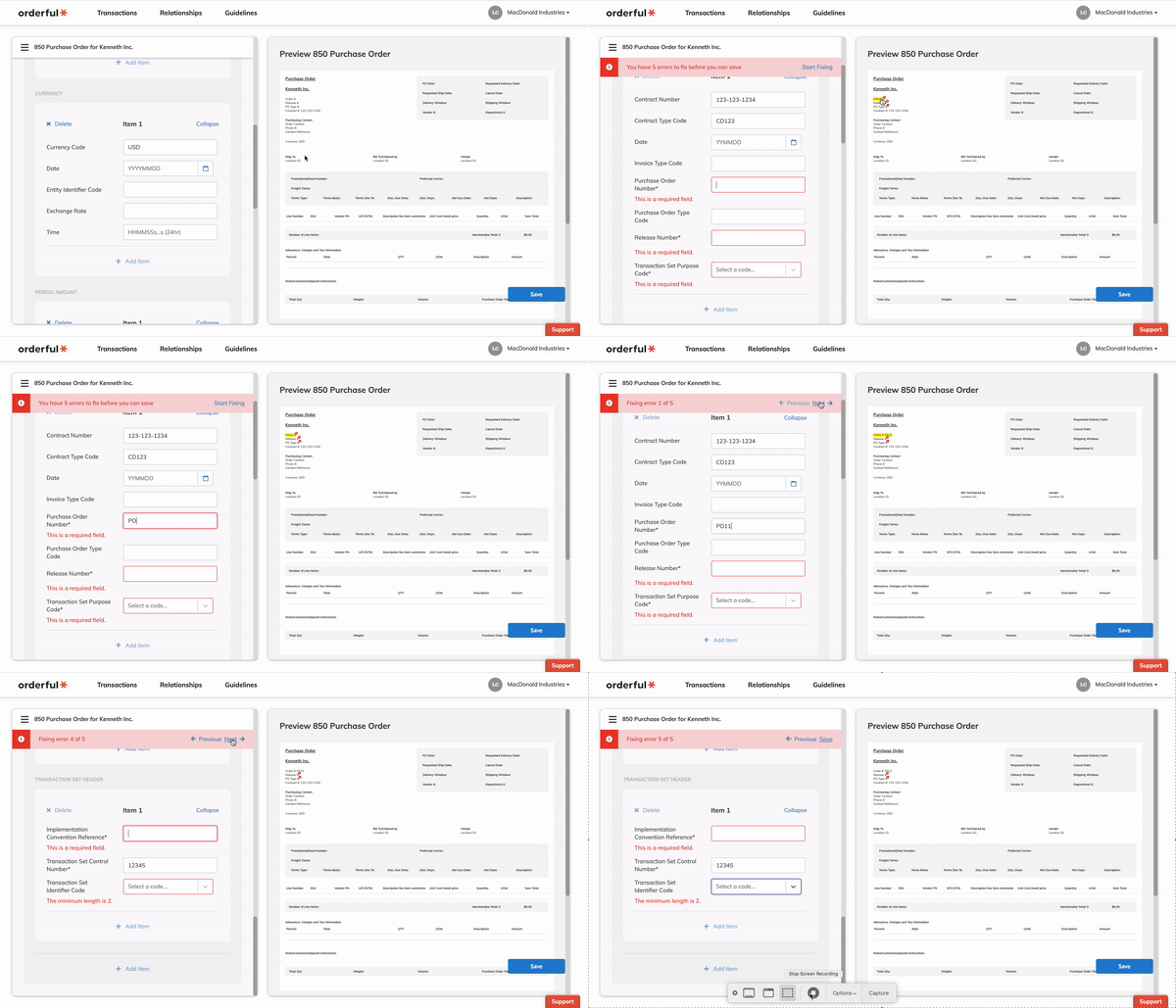
Once you click 'Save', if there are errors, they will be displayed both on the form and on the print view. You can click the errors on the print view or simply click 'Start fixing' on the new error wizard, and you will be navigated through the errors and be able to correct them.

600

Changelog

  • added: New Print View Entry

Summary

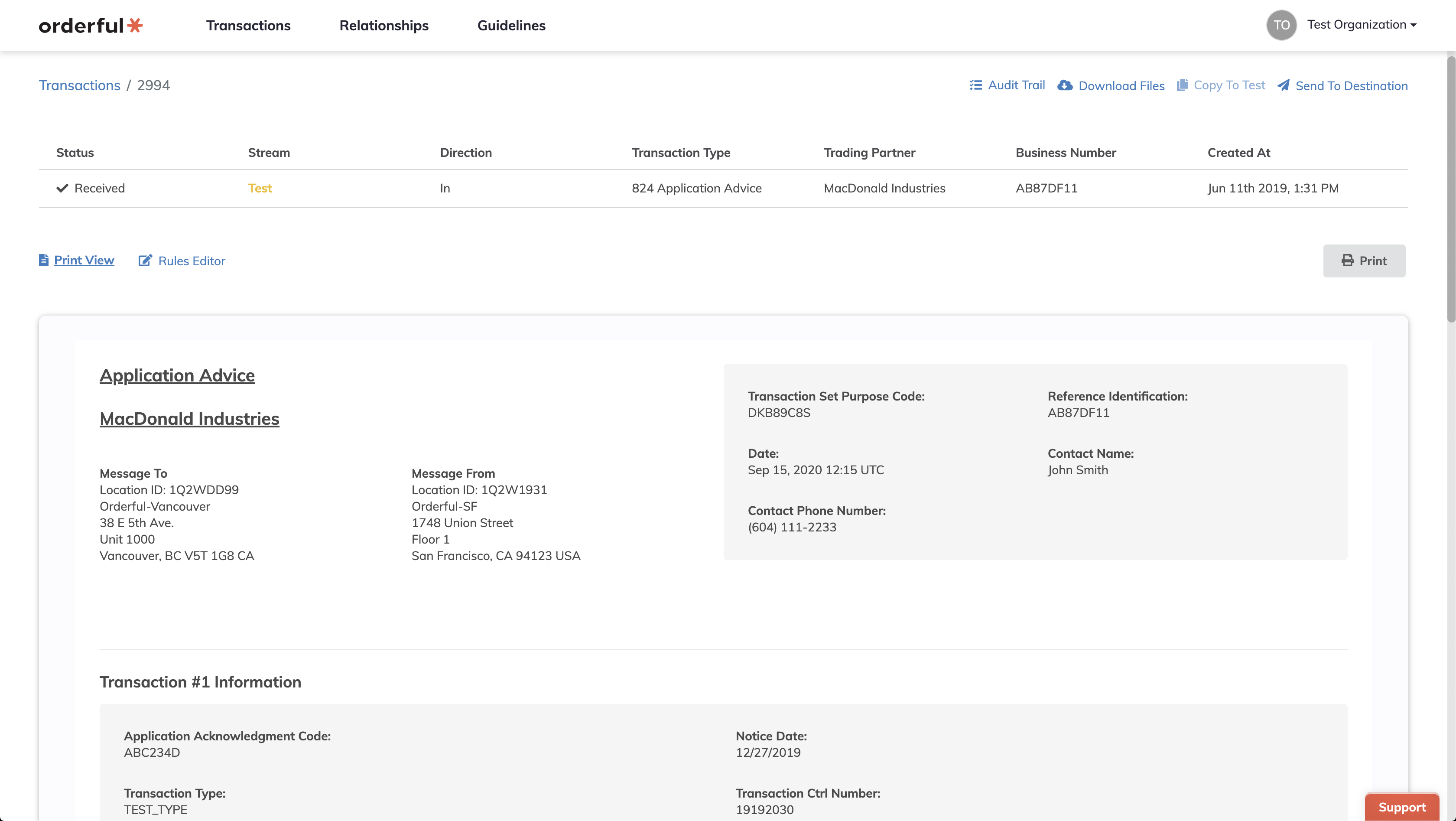
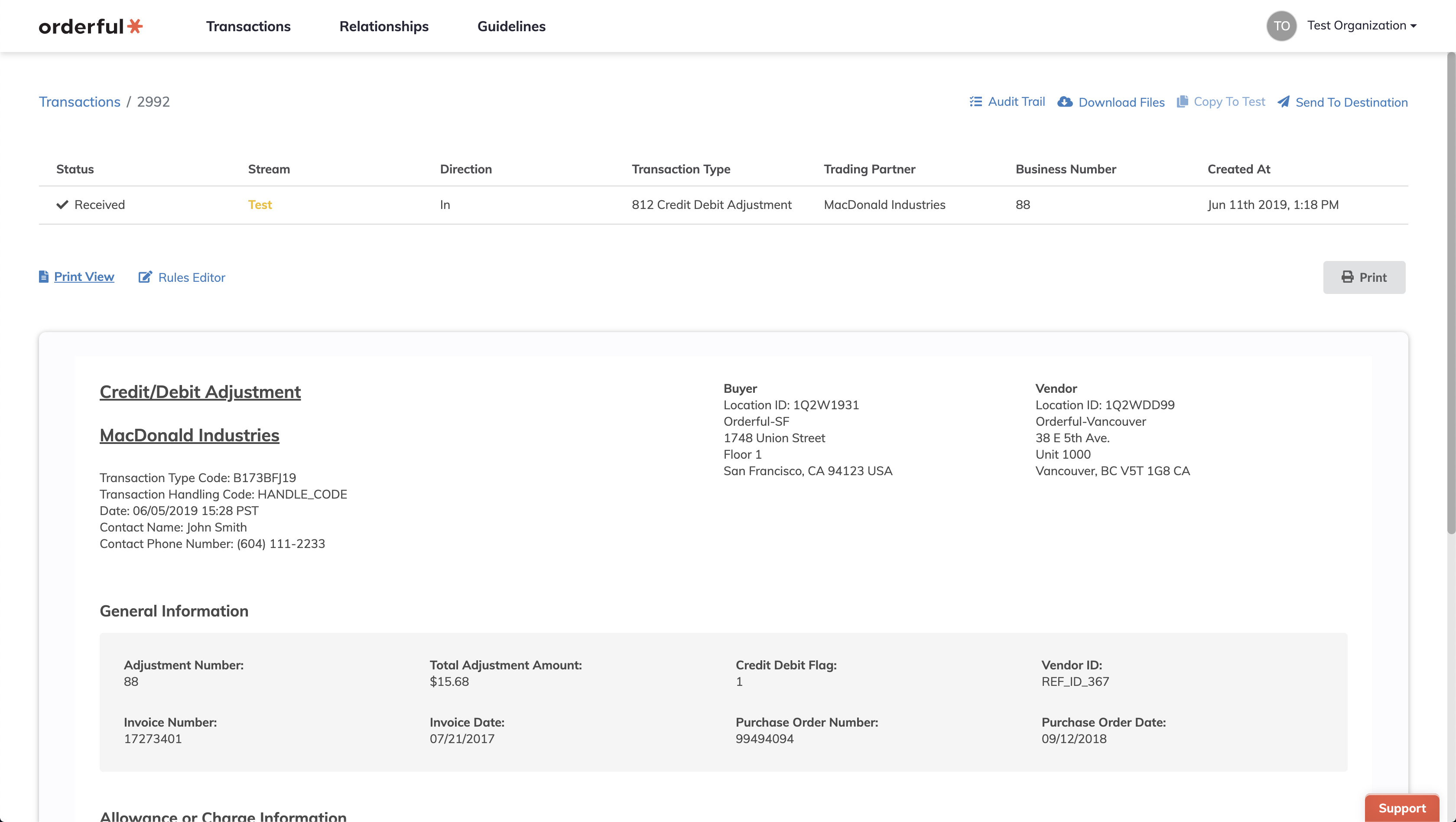
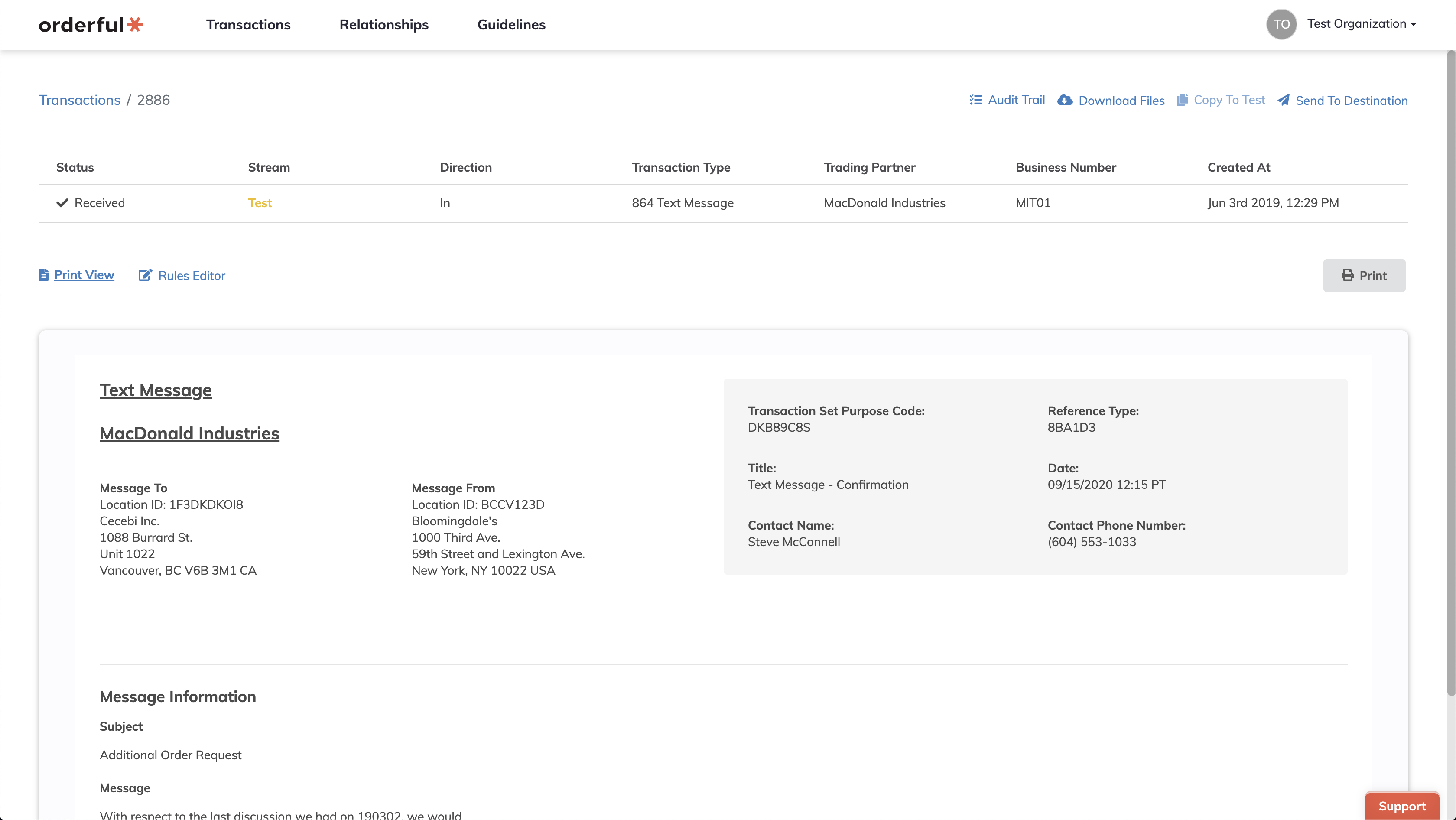
We have added support for the following transactions to the Print View feature:

  • Application Advice
  • Credit / Debit Adjustment
  • Text Message

Application Advice Print View

3360

Application Advice

Credit/Debit Adjustment Print View

3360

Credit/Debit Adjustment

Text Message Print View

3360

Text Message

Changelog

  • added: Transaction Print View for Application Advice
  • added: Transaction Print View for Credit/Debit Adjustment
  • added: Transaction Print View for Text Message

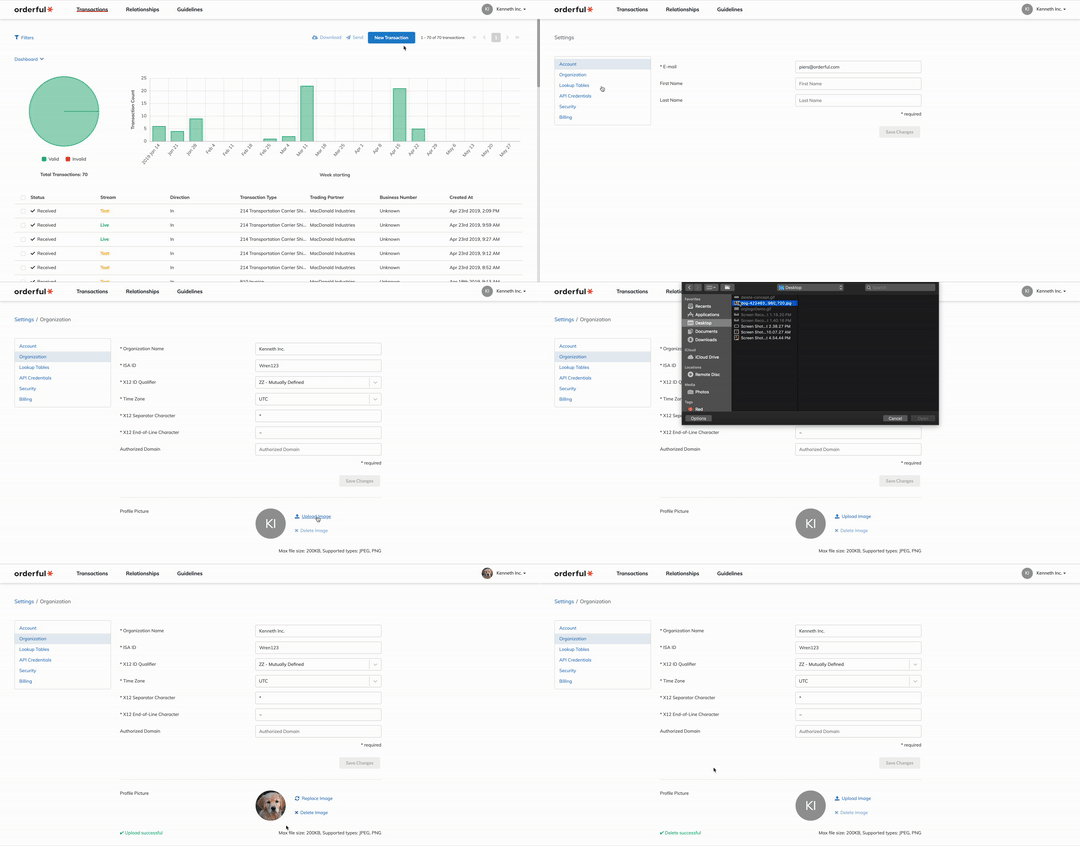
Introducing organization logos!

Wherever you are in Orderful's application, you'll now always see your active organization's logo in the navigation bar, so you'll always know which organization's data you're looking at. Don't have a logo yet? No worries – we've set the default logo as your organization's initials.

540

To upload a logo, navigate to the 'Organization' tab in 'Settings' and upload either a JPEG or PNG image file. To delete your uploaded logo and restore the default logo, simply click 'Delete Image'.

Changelog

  • added: Organization Logos

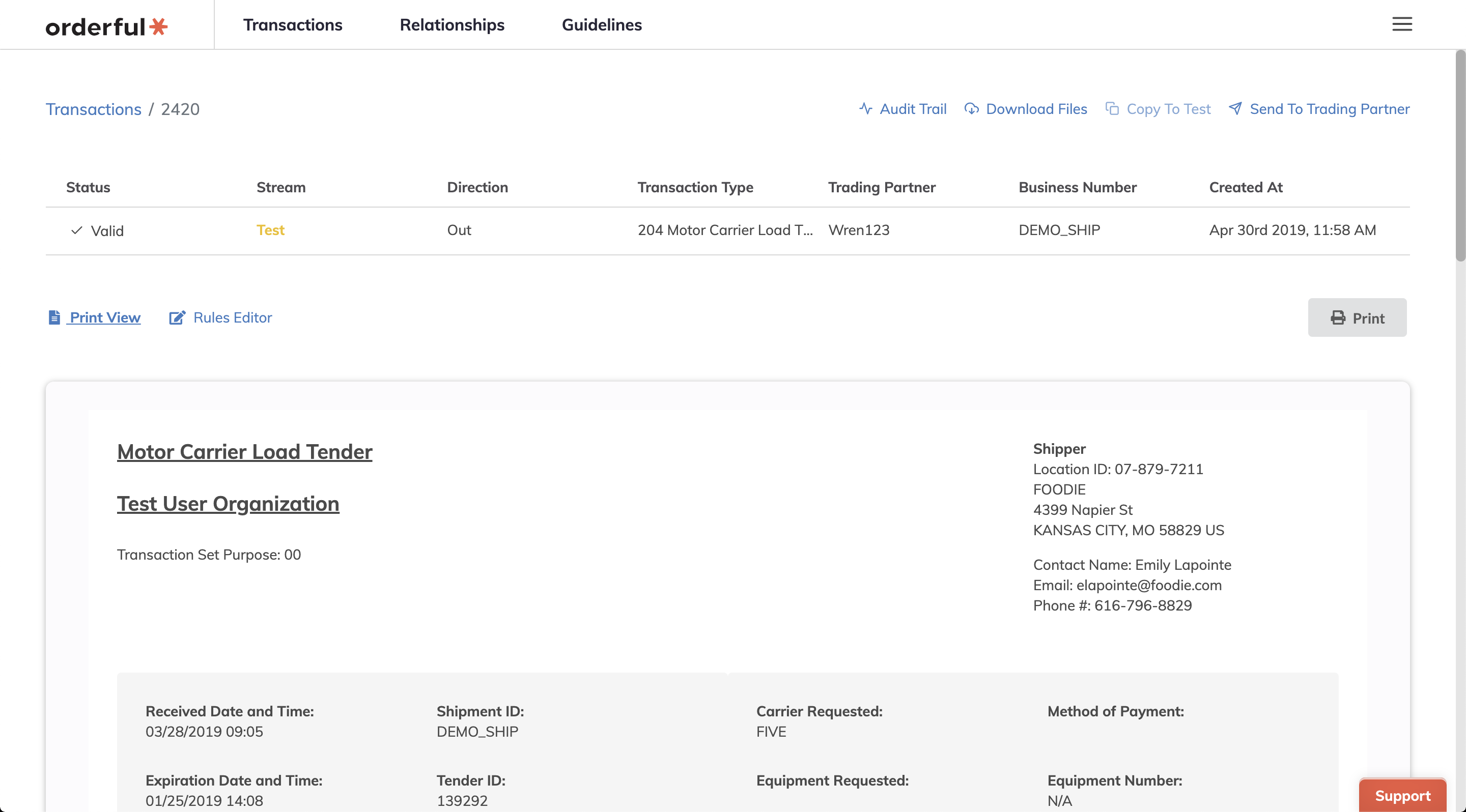
The Print View feature now supports Motor Carrier Load Tenders.

2880

The supported print view transaction types are:

  • Purchase Order
  • Purchase Order Change
  • Payment
  • Motor Carrier Load Tenders new

Changelog

  • added: Transaction Print View for Motor Carrier Load Tenders

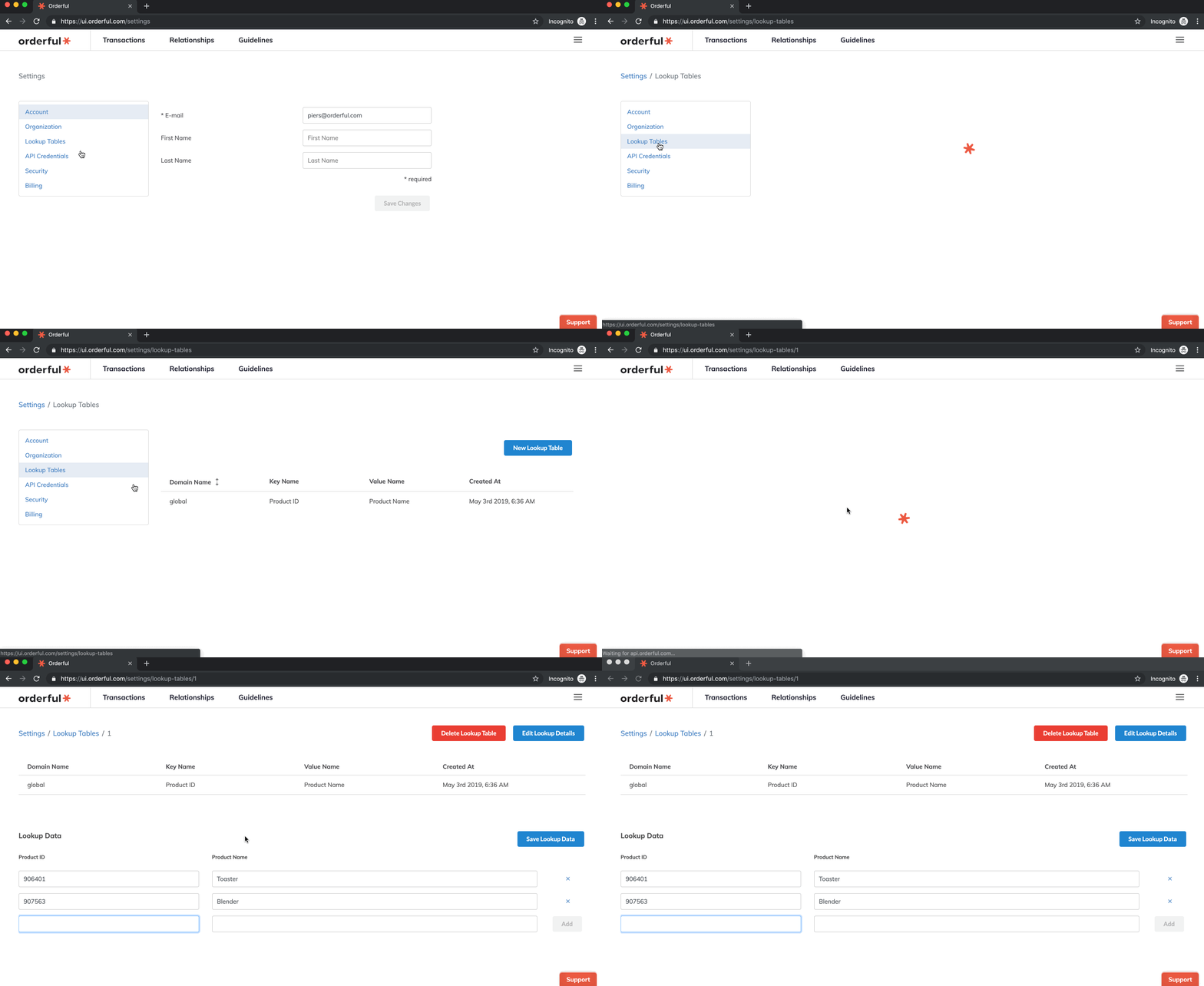
Today we're announcing the launch of our lookup data feature. A frequent ask from customers and implementors is the ability to have a "scratch pad" of structured data that they can add to their transactions. With the new lookup data feature, you can now securely store information like product item data, vendor locations, or any other information in our flexible lookup data tables, and then apply this information to your transactions, all in just two easy steps.

Store your data

Create your lookup table by defining key-value data pairs.

1388

Applying the data in the rules engine

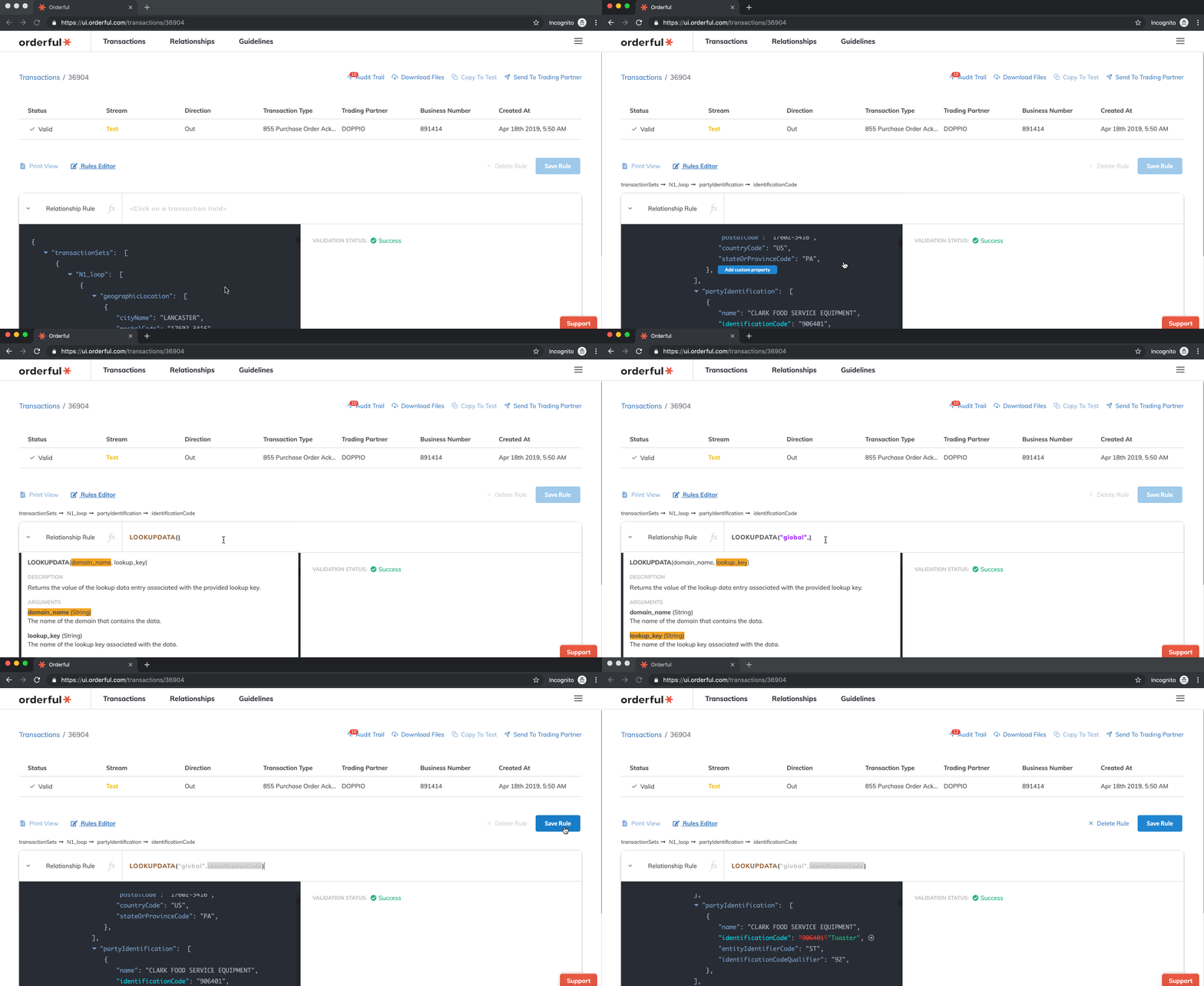
Using the new LOOKUPDATA function you can write rules to reference your lookup tables and populate your transactions.

1388

All data is securely stored and encrypted.

Changelog

  • added: Lookup data feature

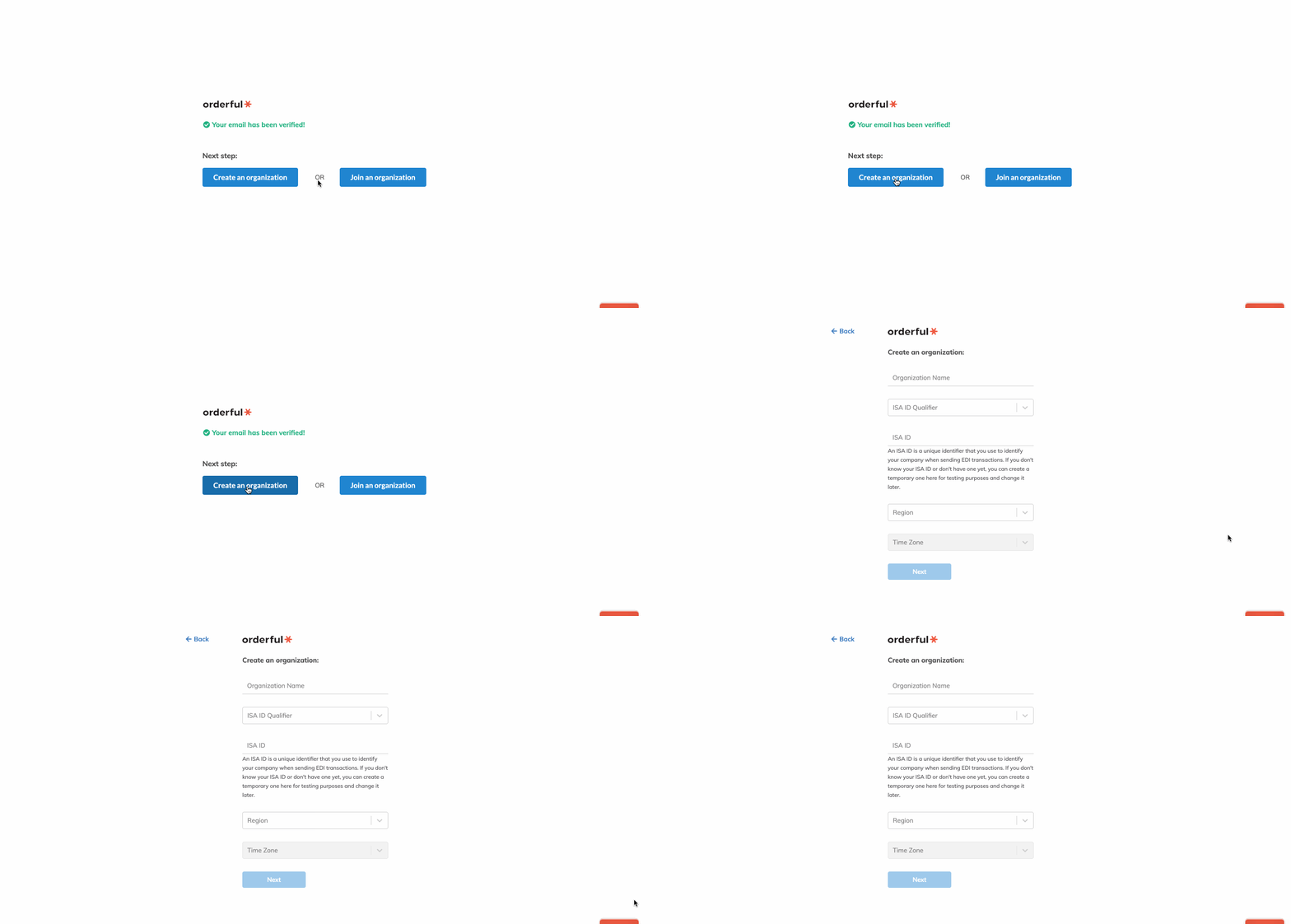
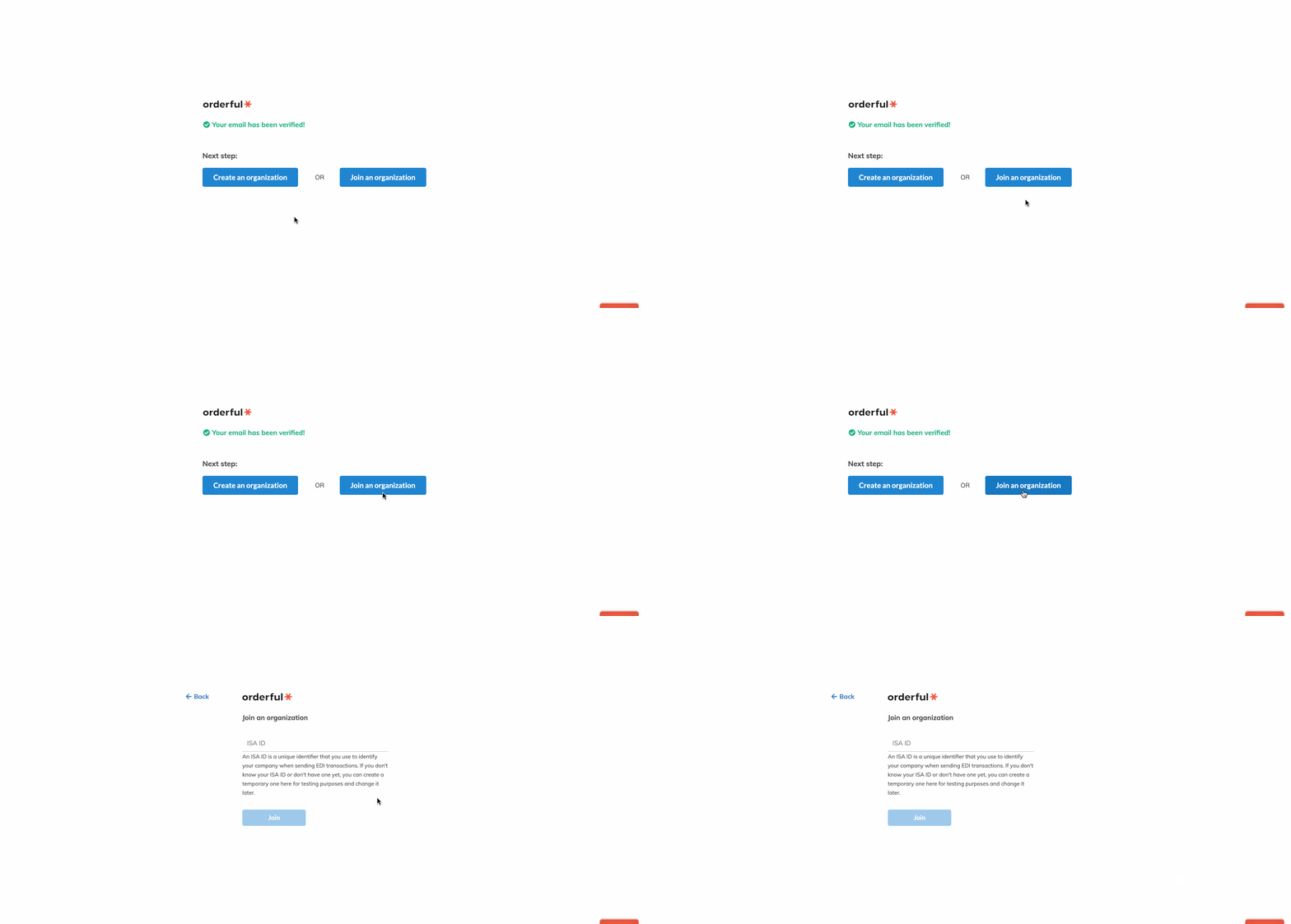
We've made the sign-up process with Orderful easier than ever. After your email has been verified, you can either create a new organization or join an existing one.

Create A New Organization

The process to create a new organization is unchanged – you enter your organization details, such as your organization's name and ISA ID, and your user account is then attached to this brand new organization, ready to start trading with Orderful.

1425

Join An Existing Organization

Simply enter your organization's ISA ID and your account will be joined to this organization.

🚧

Authorized Domain

Your verified email must be from a domain authorized by the organization you wish to join. For example, if you work for Wonka Industries, then your email would have to be something like [email protected] to show you're a member of that organization.

1425

Changelog

  • added: Support for authorized domains
  • added: Ability to join an organization on sign up

Guidelines now support select X12 versions in addition to the Orderful schema. This will speed up data entry as the guideline layout should map directly to the EDI specifications of a trading partner.

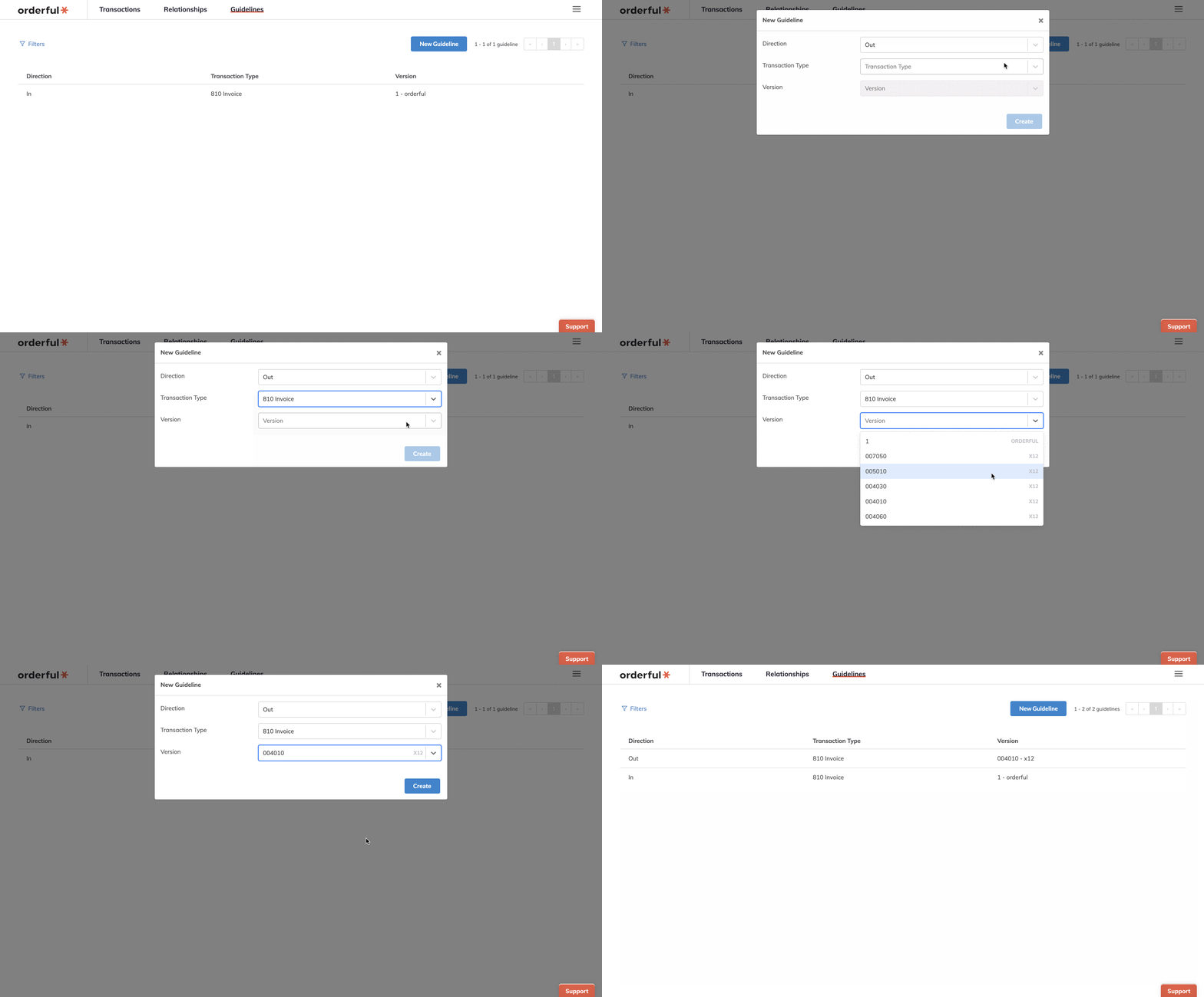
Here's how to add a new guideline for an X12 version:

  • Go to the Guidelines page
  • Click the 'New Guideline' button
  • Choose a direction and transaction type
  • Choose a version from the available options (options will change for each transaction type)
1436

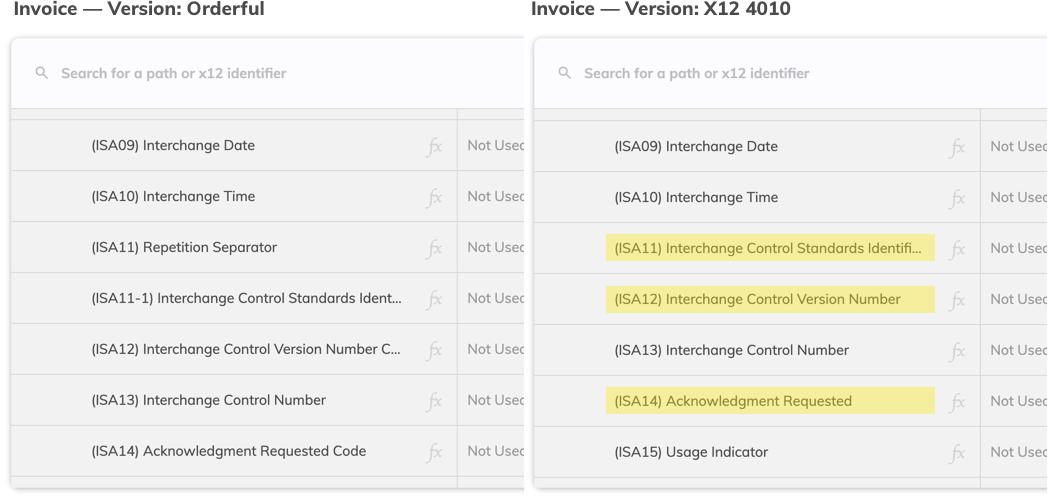
When you go into a versioned guideline you'll see that it looks very similar to your existing guidelines. The main differences will be in the naming and positioning of certain loops, segments and data elements.

Here's an example highlighting some differences between the Orderful and X12 4010 versions for the ISA (Interchange Control Header) segment:

1048

Changelog

  • added: Guideline Versioning

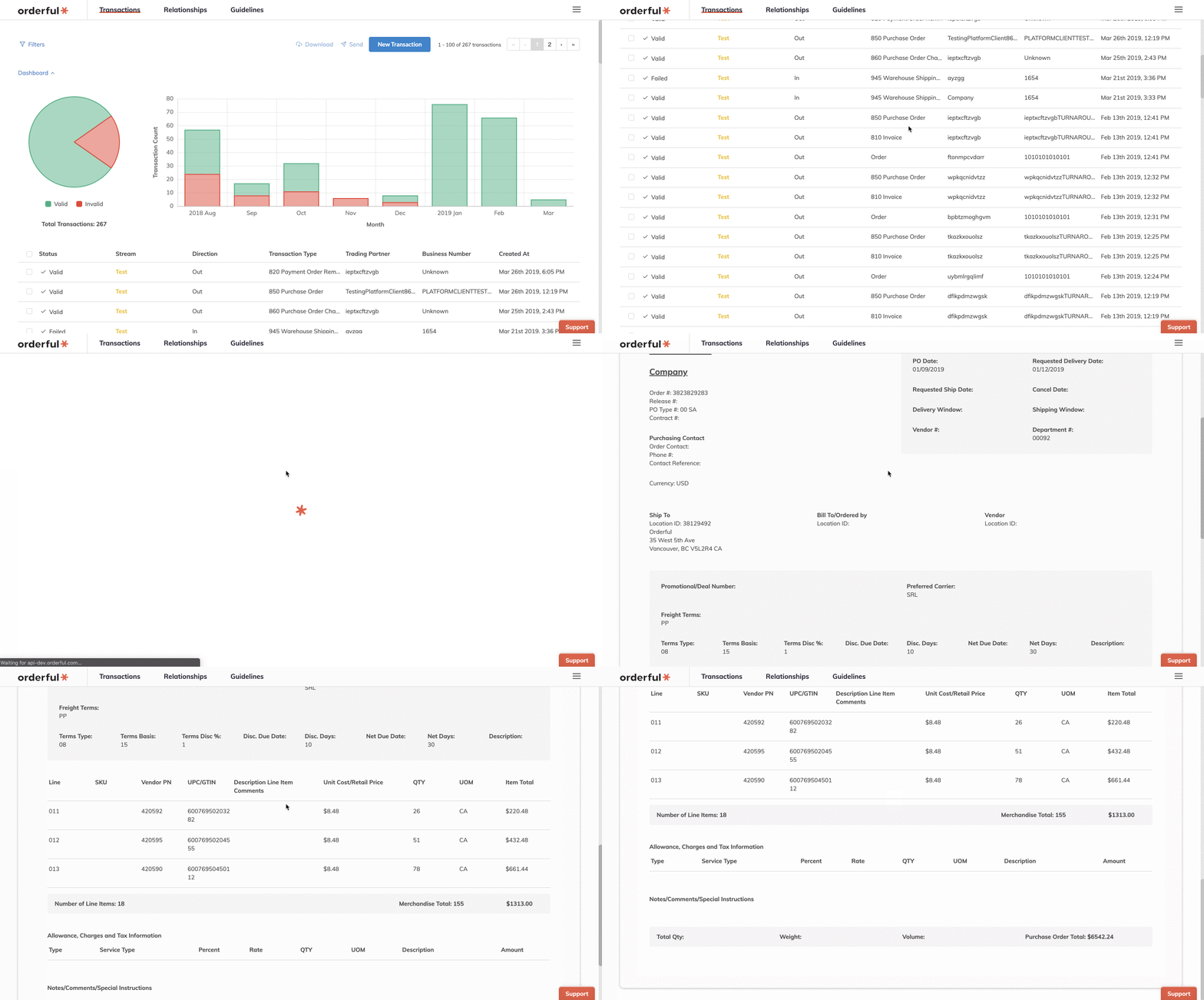
Introducing the Transaction Print View! Now you can see select transaction types in a familiar format that's easier to read than JSON (for most).

To see the print view, go to a Purchase Order, Purchase Order Change, or Payment. The print view will be visible by default.

1436

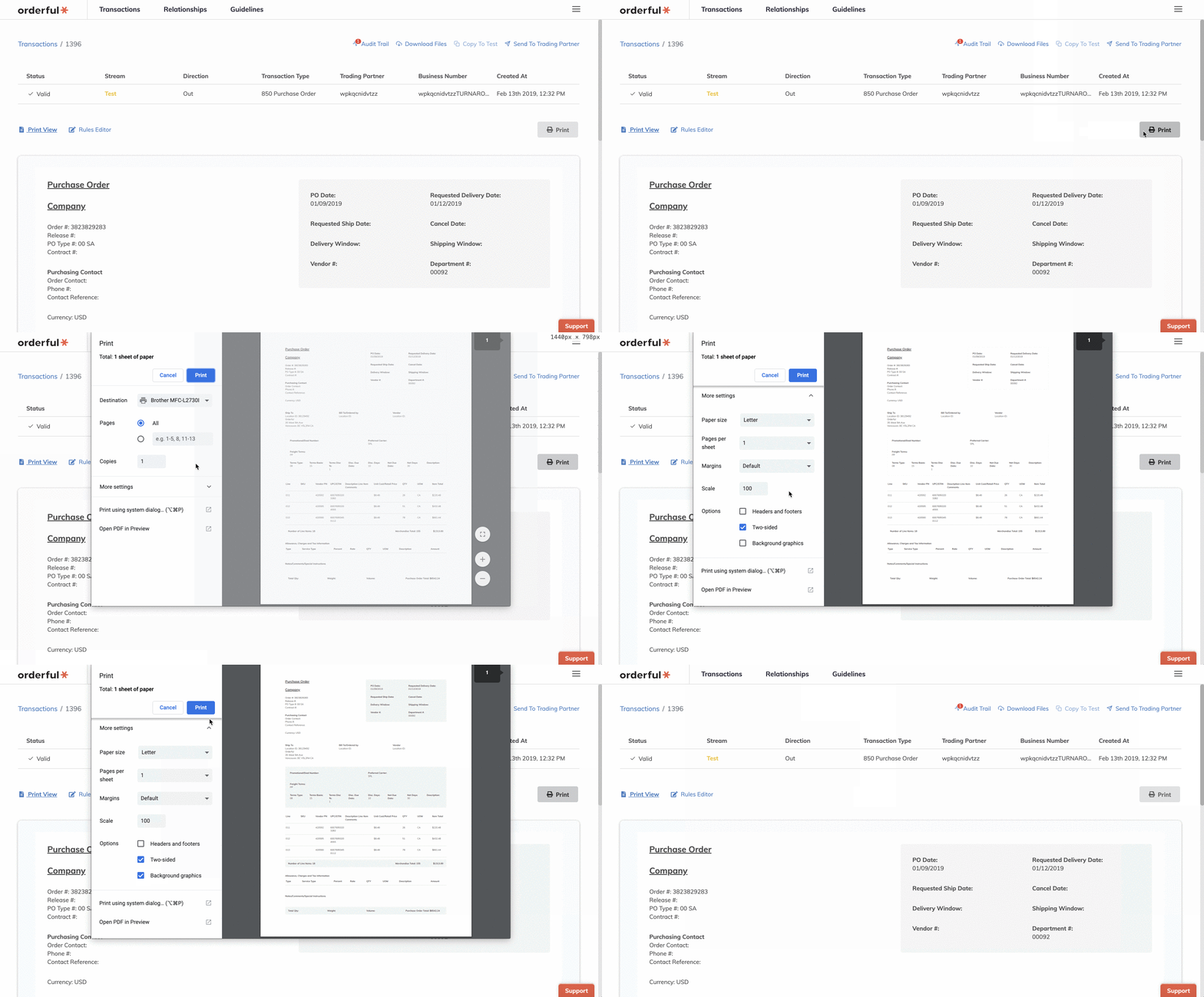
To print your transaction, click the 'Print' button. If you'd like to include background colors, you might need to adjust your print settings in your browser's print dialogue menu. If you're using Google Chrome, you can do so under 'More Settings' by checking the 'Background Graphics' option.

1437

If your transaction is Invalid and requires rule changes, or if you prefer viewing your transaction in JSON, simply click the 'Rules Editor' link and you'll be back to Orderful's familiar JSON view.

Changelog

  • added: Transaction Print View for Purchase Orders
  • added: Transaction Print View for Purchase Order Changes
  • added: Transaction Print View for Payments

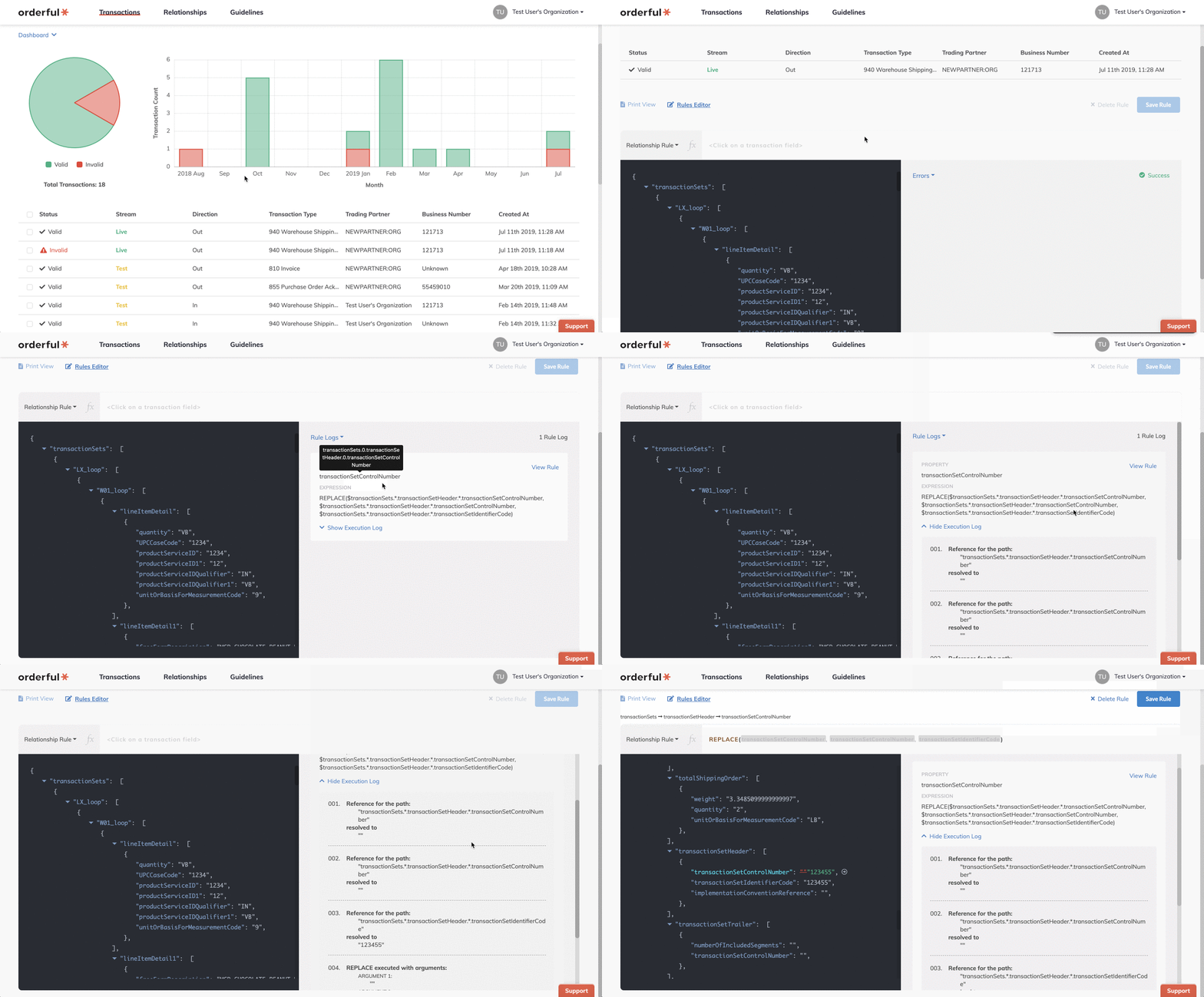
Our rules engine has functions to manipulate almost anything – modify text, calculate numbers, use conditional logic, or execute other data changes. But for some truly complex, yet common tasks, that might require stitching together quite a number of functions to get the result you need.

For example, take setting the item status code on the 855 (Purchase Order Acknowledgement). Let's say your trading partner ordered 10 cases of pencils at $10.00 per case. Unfortunately though, your trading partner's information is out of date, so they didn't know the price per case is now actually $10.50. As a result, in the PO Acknowledgement, you need to set the status for the item as 'IP' to signify that the actual price is different from what was specified in the 850 (Purchase Order). This might be a problem if your integrated system of record doesn't store the original 850 as it was received, but instead simply overwrites the price with the new value.

Here's the logic we would need to execute in order to set the item status:

  • We need to find the original 850
  • We need to match each line item in the 850 with the corresponding line item in the 855 (extra hard depending on how your trading partner references an item)
  • We need to compare the price
  • We need to compare the quantity
  • We need to compare the units of measure

That's a lot of logic to write for a single element. In fact, with our existing functions, it would take over 60 deeply-nested functions – not something easily done!

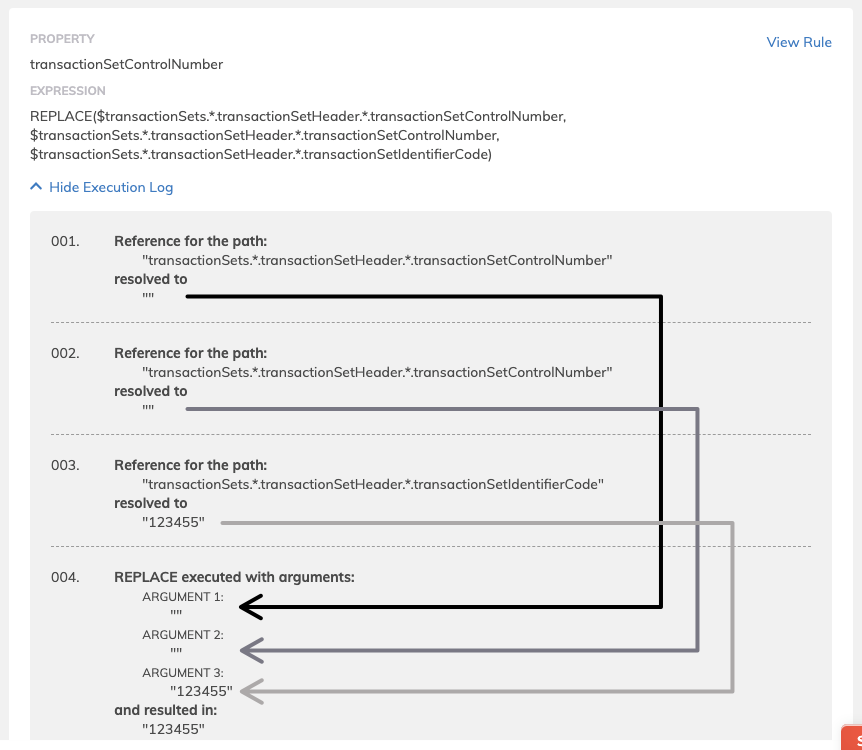
Enter the smart rule! With smart rules, we give you the ability to execute pre-written, common EDI tasks in a single line. All of the above can be accomplished with a single function call to SMART("itemStatusCode") as seen below:

1425

Check out the documentation or try it yourself in Orderful today.

Changelog

  • added: New SMART function
  • fixed: Turnaround rule business number reference were broken
  • fixed: Empty guidelines codes always caused a validation error

Orderful transaction schemas contain everything needed to capture X12 EDI data. However sometimes you might want to add your own loosely-formatted data to a transaction and then manipulate it later.

For example you might have an integration that always expects an element called Date to be populated. However you suspect various trading partners could populate it in similar but different elements. Instead of an expensive and time-consuming change to your integration every time you add a new trading partner you could simply create a user defined property called expectedDate and use the rules engine to set that conditionally depending on how your trading partner sets data. That way your integration never changes.

See below to watch how easy it is to set the user defined properties in the UI

1425

Every loop and segment accepts a userDefined element so for outbound transactions you can even define it in your integration before the transaction is created. This might be helpful if you have additional data available in your ERP but you're not sure where to map it during your integration. You can add it to the user defined element and then use the rules engine to retrieve it later if the need arises, once again eliminating the need for a costly code change.

Changelog

  • added: New SET and OBJECT functions to allow user defined object creation
  • added: UI to toggle userDefined element creation