

Quick Start
This guide walks you through installing and configuring the Orderful for NetSuite SuiteApp. The process takes about 15 minutes.
For an overview of the SuiteApp's capabilities, see Orderful for NetSuite.
Prerequisites
Before installing, ensure you have:
- A NetSuite account
- Completed Orderful onboarding: Getting started as a Follower
- At least one Relationship
- An Inbound Poller Communication Channel. If you need to create one, follow these instructions.
Step 1: Install the SuiteApp
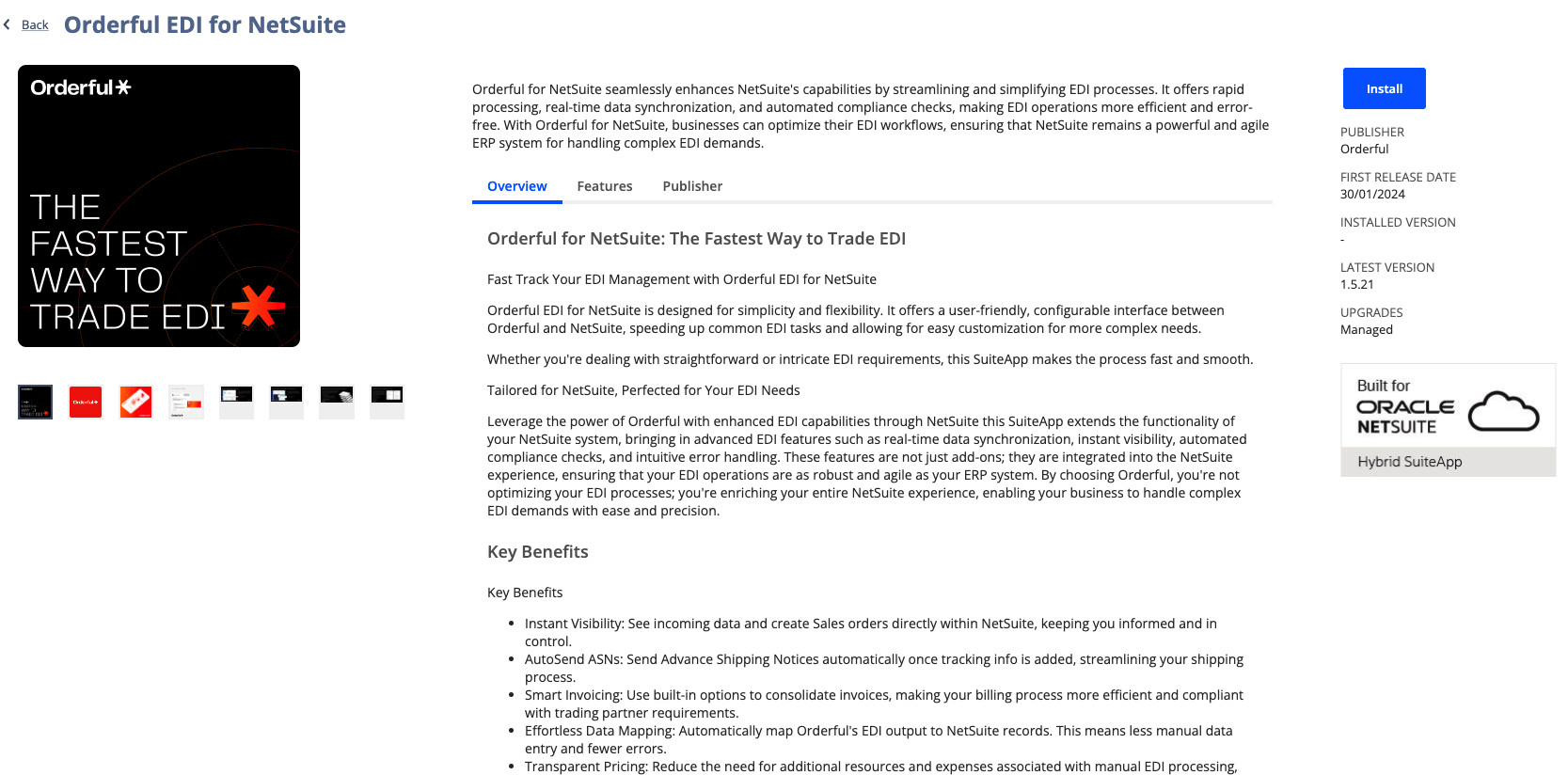
- Inside your NetSuite instance, navigate to the SuiteApps Marketplace and search for "Orderful".
- Open the "Orderful EDI for NetSuite" SuiteApp and click the Install button.
Step 2: Add API Credentials
Begin by copying your Orderful API credentials into your SuiteApp settings:
- Sign in to your Orderful account:
- Orderful US: https://ui.orderful.com
- Orderful EU: https://ui-eu.orderful.com
- Click on your icon in the upper right of the Orderful UI landing page, then select Settings from the drop-down.
- Under Organization Settings, select API Credentials.
- Copy your API Token.
- Inside Netsuite: Navigate to Setup > Company > API Secrets.
- Click on Create New, which will open the "Create New Secret" window.
- Start from the Details tab. Enter a "Name" of your choice.
- For "ID", enter
_orderful_api. NetSuite will prependcustsecretto this, so the final value will becustsecret_orderful_api. - For "Password" and "Confirm Password", copy the Orderful API Token from your Orderful Settings. Note that once you enter the value and save, you will not be able to access this value.
- On the "Restrictions" tab:
- Enable "Allow for All Scripts".
- Enable "All for All Domains".
- Leave all other options disabled.
- Click Save.
Step 3: Configure Global Settings
In NetSuite: Navigate to Setup > Company > General Preferences > Custom Preferences
- Enter your "COMPANY ISA ID" and "TEST ISA ID"
For details on all available settings, see Global Settings.
Step 4: Add Poller Information
- In Orderful, from the left navigation menu, click on Communication Channels.
- Click on the Inbound Poller Communication Channel that you created previously.
- In the pane that opens on the right, you will see a URL with this format:
https://api.orderful.com/v3/polling-buckets/{pollerID}. Copy the ID number at the end of this URL. - Back in Netsuite: Paste this value into the "Polling Bucket ID" in the General section of your Custom Preferences.
- Click Save
Step 5: Configure Subsidiary ISA IDs (Optional)
If using multiple subsidiaries, you are able to assign unique ISA IDs to each.
- In NetSuite: Navigate to Setup > Company > Subsidiaries.
- Either create a New Subsidiary or Edit an existing one, as appropriate.
- Enter your Subsidiary's "ISA ID" and "TEST ISA ID".
Updated 8 months ago
What’s Next
Now that the SuiteApp is installed, you can set up your first customer trading partner!
Did this page help you?